Dify & MCP
How Dify workflows and tool plugins are wired into Cowork as MCP tools, and how admins control which tools are exposed.
Written By Kristė Vagnerytė
Last updated About 2 months ago
Admin (Cowork) → Dify & MCP
The Dify & MCP tab manages the organization’s Dify integration — Dify workflows and tools are automatically turned into MCP tools that Cowork skills and chats can use.
What Dify & MCP is used for
Review the Dify connection status and the last sync time
Enable/disable individual Dify workflows and tool plugins
See how many MCP tools are available in total and how many are currently exposed to Cowork users
Control who may call each MCP tool
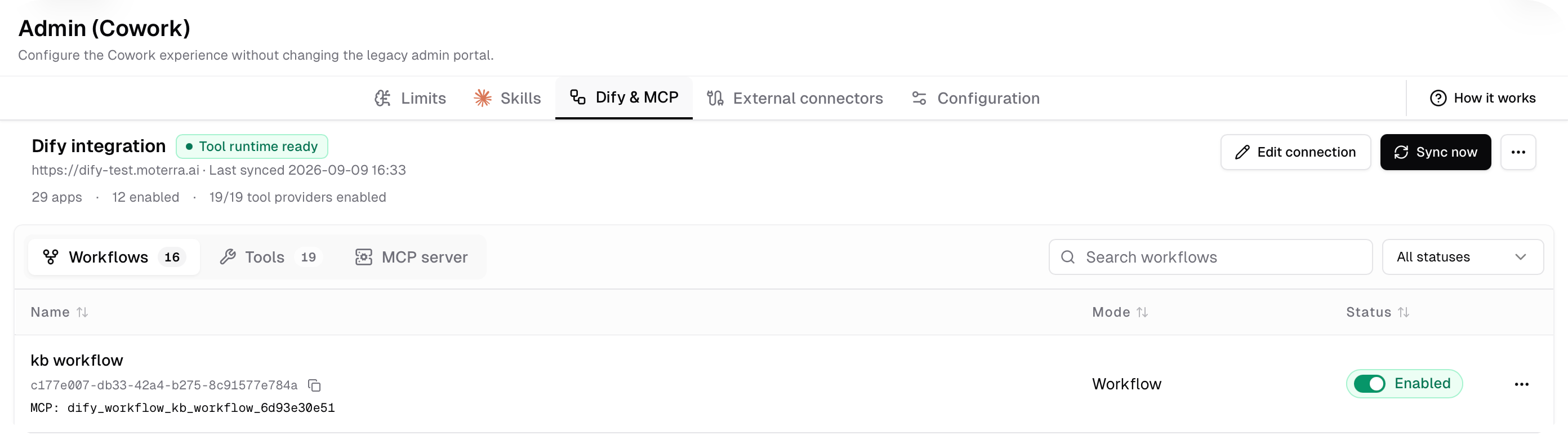
At the top, a Dify integration card shows the connection status (e.g. “Tool runtime ready”), the Dify instance URL, the last sync date, total apps and how many are enabled, plus Edit connection and Sync now buttons.
The tab is organized into three sub-tabs: Workflows, Tools, and MCP server.
Workflows
The Workflows tab lists every Dify workflow connected to this Dify instance:
Name – the workflow’s name, its ID (with a copy button), and the matching MCP tool identifier (e.g.
dify_workflow_kb_workflow_6d93e30e51)Mode – the run mode (Workflow in this deployment)
Status – Enabled or Disabled
Only enabled workflows become available as MCP tools that skills or users can call directly from a Cowork chat.

Tools
The Tools tab lists the third-party tool plugins connected through Dify, e.g. Audio, Code Interpreter, CurrentTime, DeepL, Firecrawl, Gmail, Google, Google Sheets, Microsoft Excel 365, and others.
Each card shows:
A short plugin description and its sync status (Synced).
An Enabled/Disabled toggle
How many of that plugin’s tools are available (e.g. “7 of 7 tools available”), with a few examples and the plugin’s technical identifier (e.g.
langgenius/firecrawl)
MCP server
The MCP server tab is where admins choose which individual tools the Moterra MCP server exposes to Cowork, and who may call each one. Hidden tools never appear in a user’s tool list.
A summary at the top shows totals, e.g. “101 of 101 exposed”, plus a warning if any tools are currently unavailable (e.g. “8 tools unavailable”)
Tools are grouped into categories (e.g. Moterra tools, with subgroups like Files, Images, Knowledge bases, and more)
Each tool shows Access (e.g. “All users”), Status (Available), and Visibility (Exposed/Hidden)
The list can be filtered by name, status, or access, and Expand all shows every category at once.
Who can use Dify & MCP
Dify & MCP is only available to admins through the Admin (Cowork) panel.
What to read next
Was this helpful?
Still need help? Ask the team