Working with Files in the General Assistant
The General Assistant allows you to upload files directly in the chat and work with their contents. This is useful when you want to analyze, summarize, or transform information from a file using AI. This article explains how file uploads work and how to use them effectively.
Written By Kristė Vagnerytė
Last updated 9 months ago
Uploading Files in the Chat
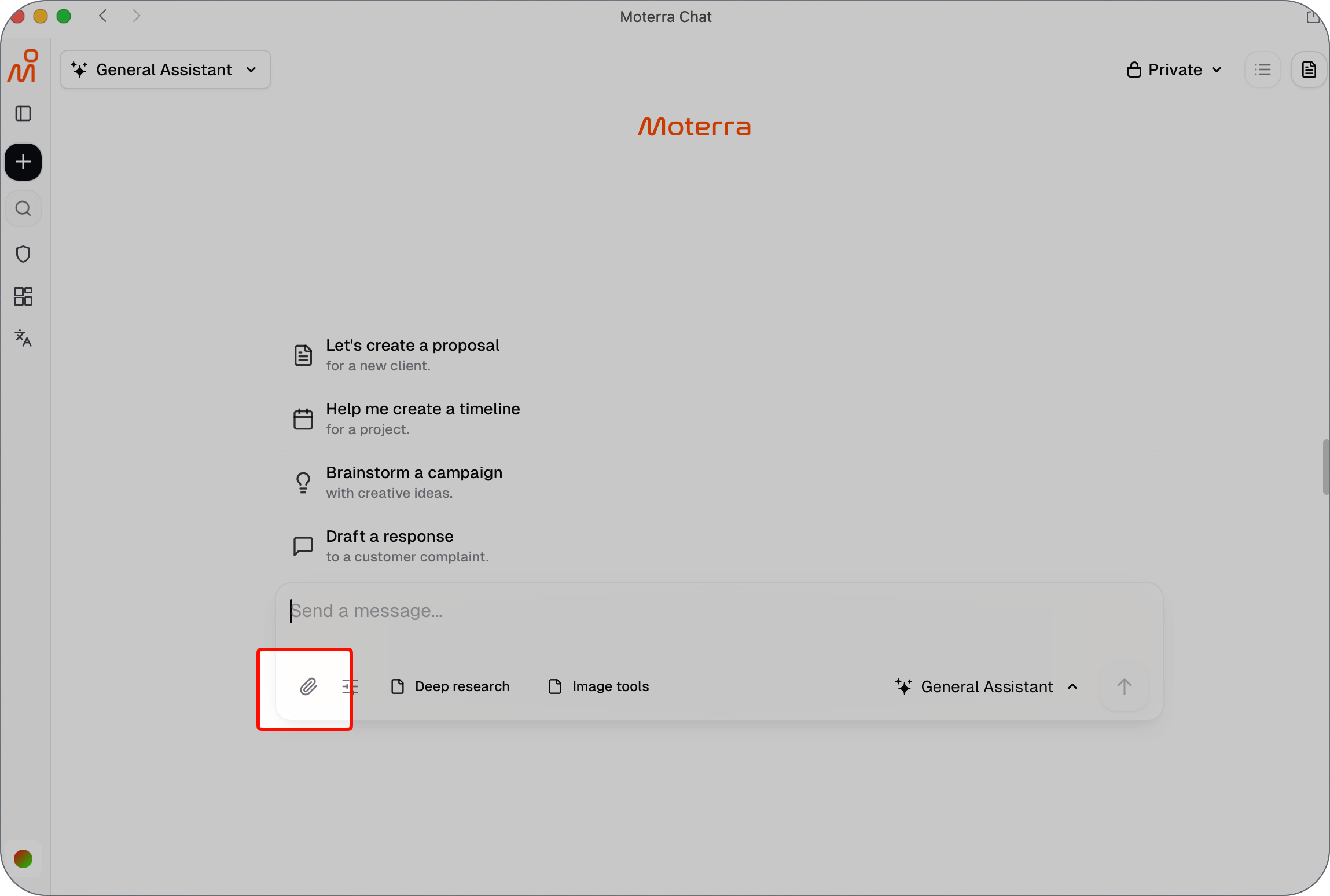
To upload a file:
Click the attachment (paperclip) icon in the chat
Select a file from your device (up to 25MB)
Uploaded files are available only within the current chat and are not stored for future conversations.
This option is best suited for quick, one-time tasks.
What You Can Do with Uploaded Files
With the General Assistant, you can:
Summarize documents
Rewrite or reformat content
Extract key points or insights
Analyze spreadsheets and data
Ask questions about the file’s content
The assistant uses the file content together with your request to generate responses.
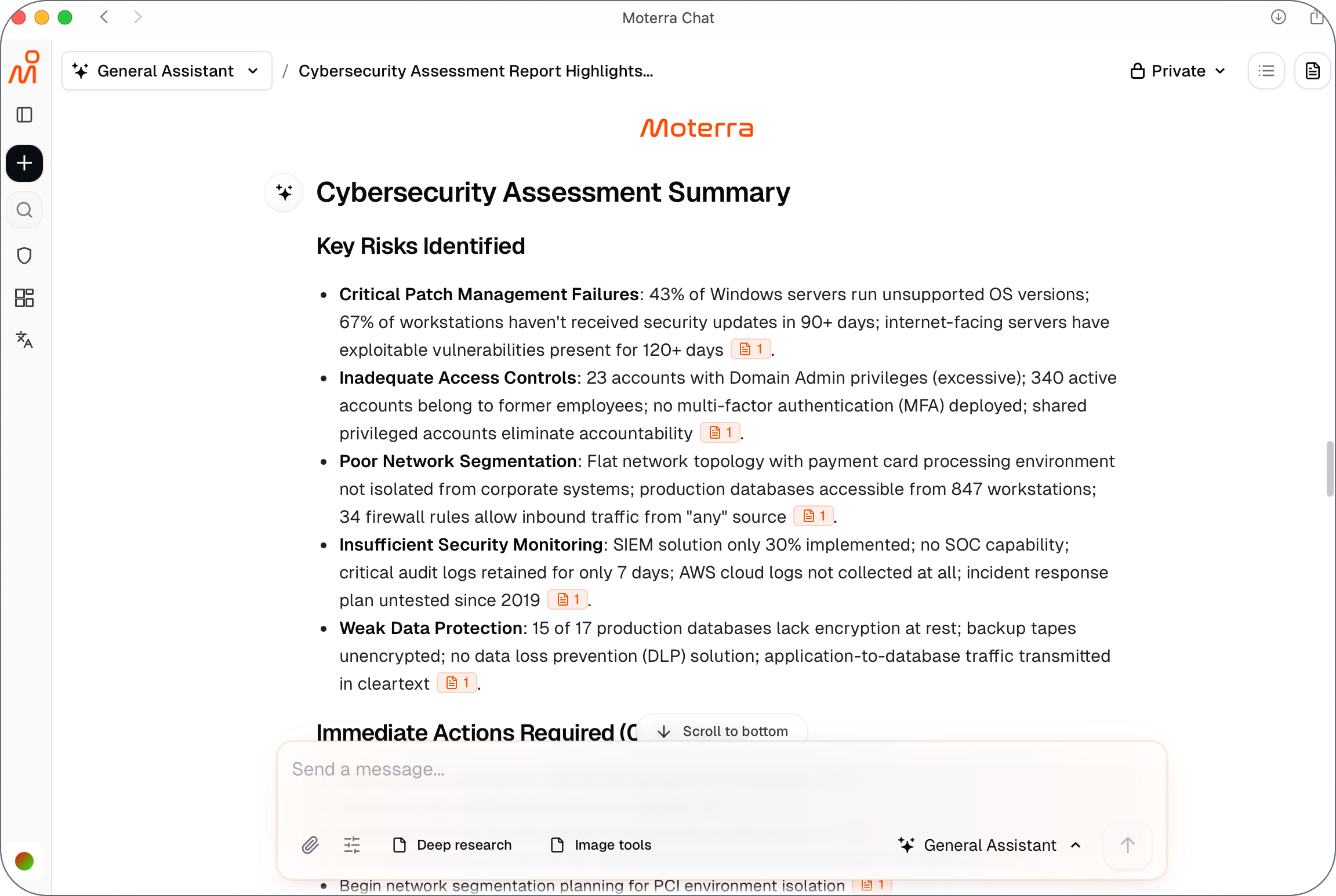
Example: Working with a Document
Example request:
Summarize this document and highlight the main takeaways.
Focus on risks and recommended actions.
Present the result as a short bullet-point list.
The assistant analyzes the uploaded file and returns a structured summary.
Example: Working with a Spreadsheet
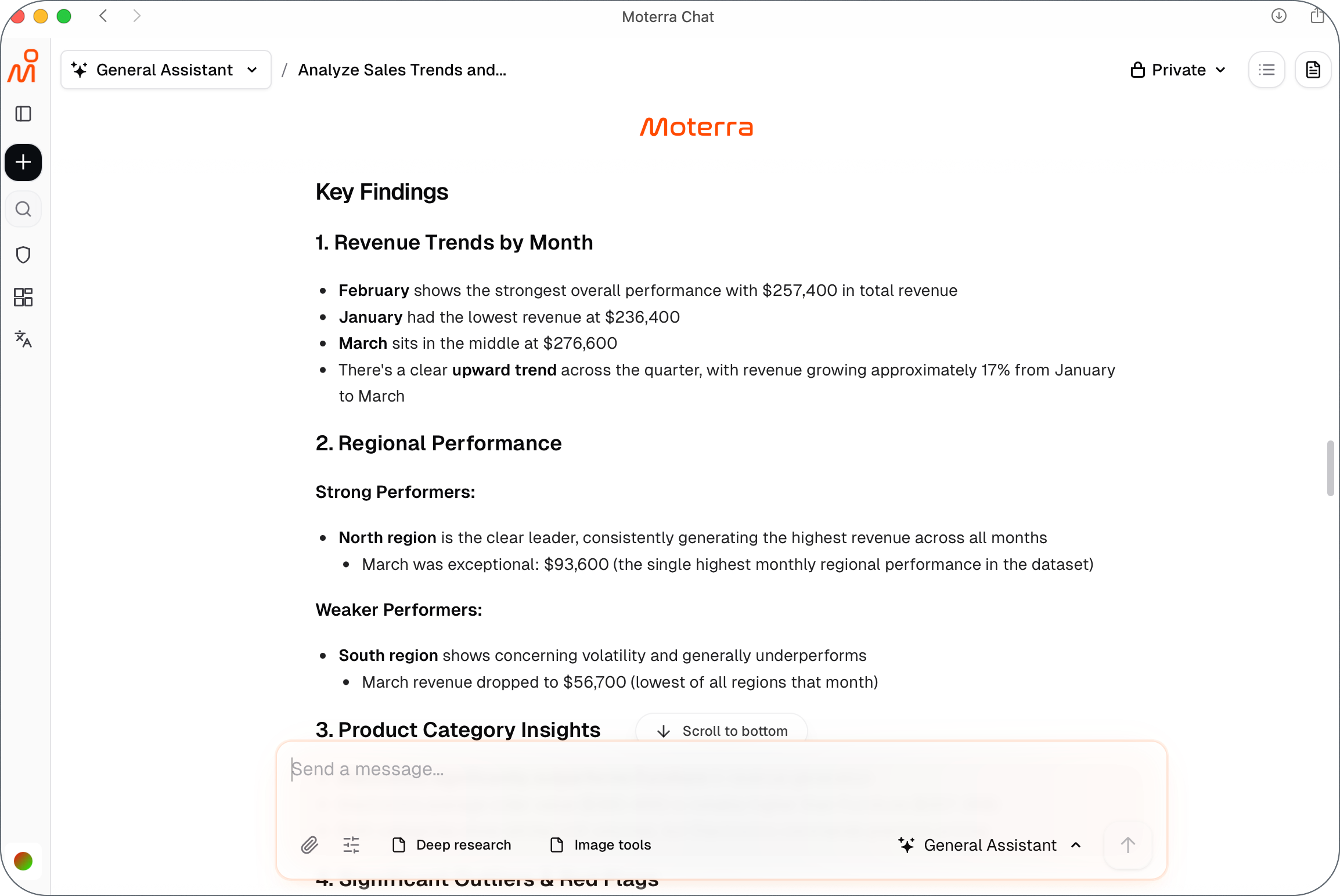
Example request:
Analyze this spreadsheet and identify key trends.
Highlight any significant changes or outliers.
Summarize the findings in plain language.
The assistant treats the data as a structured source and generates insights based on the content.
Supported File Types
The General Assistant supports common file formats, including:
PDF
DOC and DOCX
XLSX and CSV
PPTX
TXT and Markdown
Images (JPG, PNG, GIF)
For best results:
PDFs work best for text-heavy documents
Spreadsheets are best for structured data analysis
Limitations to Be Aware Of
Uploaded files are temporary and tied to the current chat only
Large or complex files may require more specific instructions
The assistant cannot access files stored elsewhere unless you upload them
If you need persistent access to company documents, use the Internal Knowledge Assistant instead.
Best Practices When Working with Files
Clearly state what you want to do with the files
Ask focused questions about specific sections or data
Start a new chat when switching to a different file or task
These practices help improve accuracy and response quality.
💡 Chat uploads support files up to 25MB.
Knowledge Base uploads support files up to 50MB.
What to Read Next
Was this helpful?
Still need help? Ask the team