Limits
How to monitor and control AI spend, budgets, and model access in Admin (Cowork).
Written By Kristė Vagnerytė
Last updated About 1 month ago
Limits is a dedicated Cowork administration area, reachable from the top menu of the Admin (Cowork) panel. It’s where admins monitor and control AI spend across the organization — from the overall monthly budget down to individual user and model caps.
This panel doesn’t change any settings in the legacy admin portal — it configures the Cowork experience specifically.
What Limits is used for
Track total organization AI spend for the month
Set a company-wide monthly budget and turn on enforcement
Assign budget categories or individual custom limits to users
Enable/disable specific models and set per-model budgets
Review detailed usage broken down by user and by model
The section is organized into five tabs: Overview, Users, Budgets, Models, and Usage.
Selecting a date range
Most tabs share the same date range controls in the top-right corner (Last 7 days, Last 30 days, All time, or a specific month/custom dates), plus a Refresh button.
Overview tab
The Overview tab gives a snapshot of spend for the selected period.
Top metrics:
Company spend – total spend against the configured monthly budget (e.g. “11% used”, status “On track”)
Remaining – budget left for the period
Cowork models – spend from Cowork model calls
Dify workflows – spend from Dify workflow runs
Users near a limit – how many users are at or above 75% of their individual limit
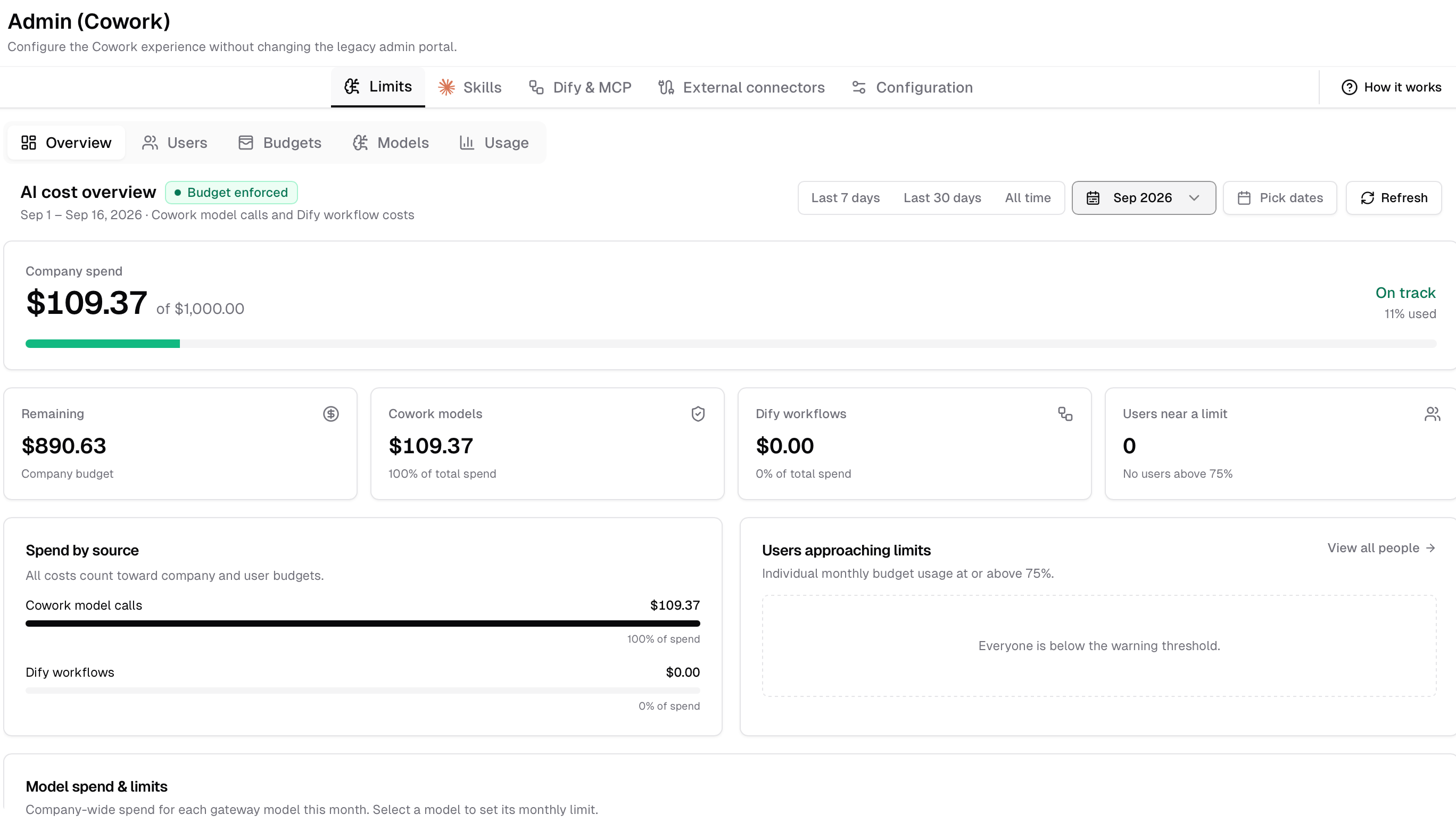
Below that: a Spend by source breakdown (Cowork model calls vs. Dify workflows), a Users approaching limits panel, and a Model spend & limits table showing each enabled model’s spend and monthly cap.
Users tab
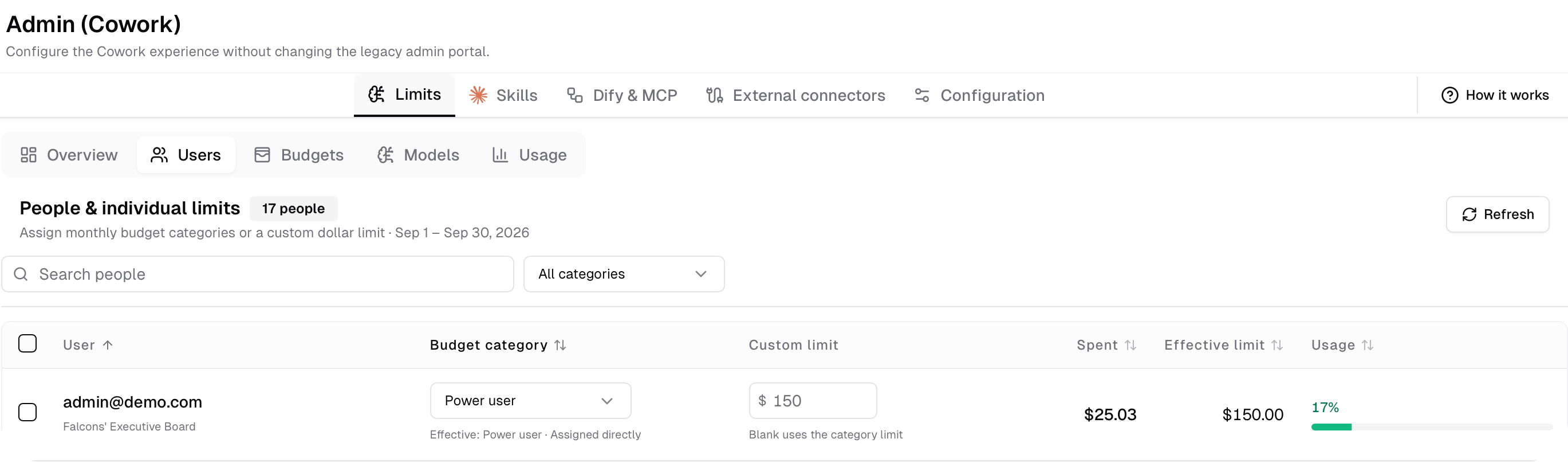
The Users tab lists every organization user with their budget setup:
Budget category – the assigned category (Standard, Power user, or “Use group/default” when inherited from a group)
Custom limit – an individual dollar limit; when blank, the category limit applies
Spent – how much the user has spent this month
Effective limit – the limit actually enforced, after all rules are applied
Usage – usage percentage with a progress bar
The list can be searched by user or filtered by category.
Budgets tab
The Budgets tab sets the overall budget policy:
Enforce budget limits – toggle that turns on real enforcement. When off, spend is still recorded but requests are never blocked
Company monthly budget – the company-wide monthly cap in dollars. New model calls stop once recorded spend reaches this amount. Left blank, there’s no company cap, but user and model limits can still apply
Individual budget categories – three built-in categories: Standard (default for everyone), Power user (a higher allowance), and No individual limit (capped only by the company budget)
Group mappings – assign a budget category to an entire company group; a direct assignment on the Users tab always takes precedence over a group mapping
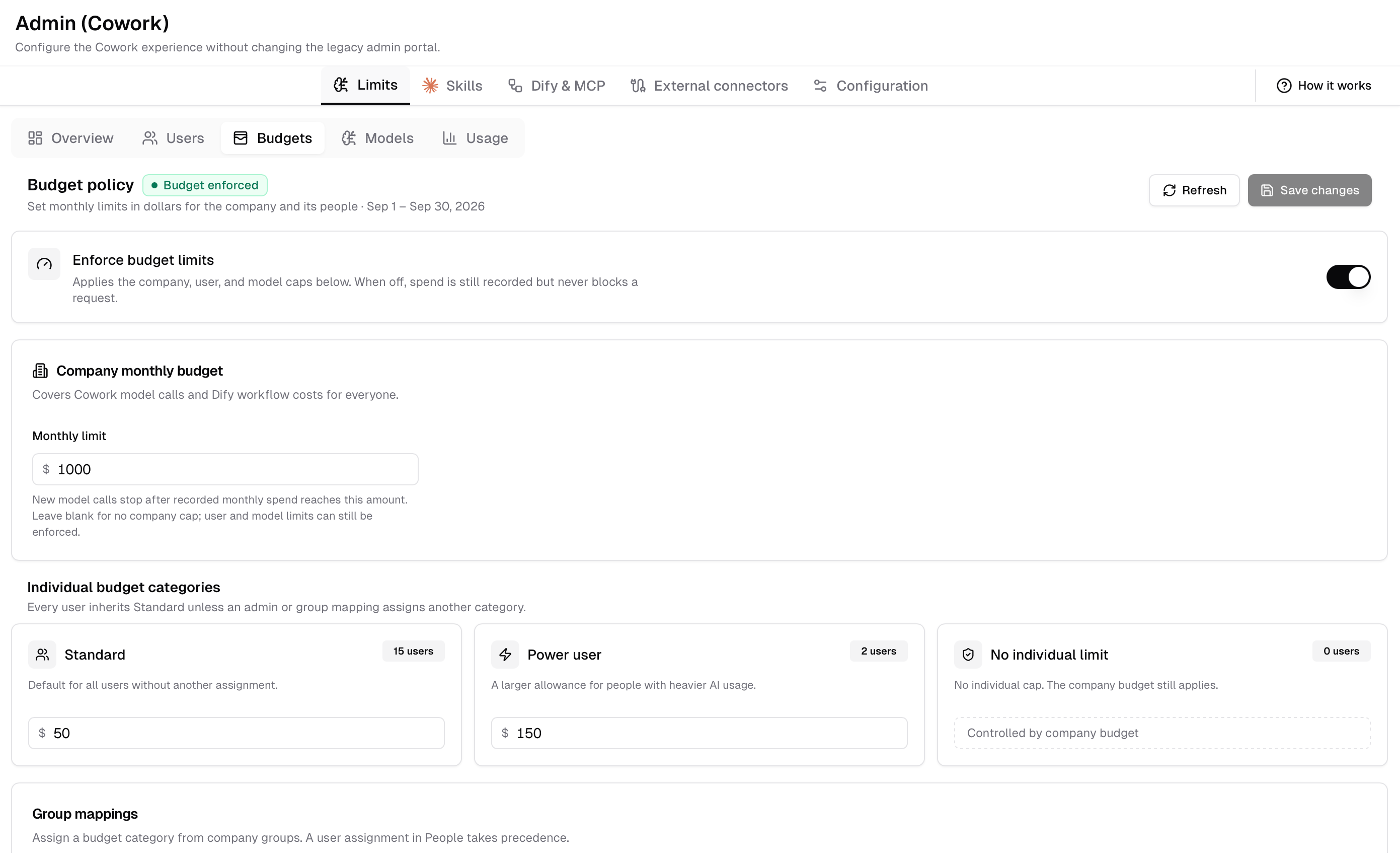
Changes are confirmed with Save changes.
Models tab
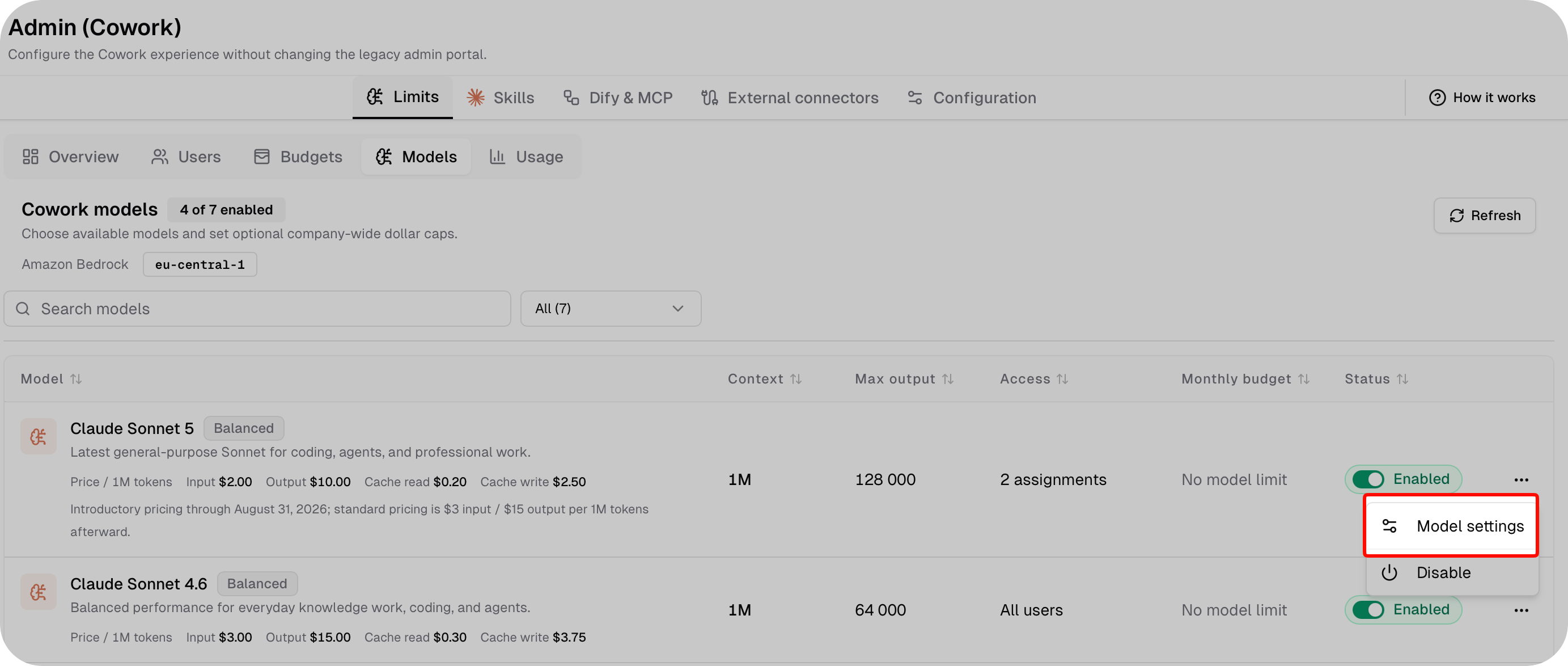
The Models tab controls which AI models are available to the organization (in this deployment, served via Amazon Bedrock, region shown at the top, e.g. eu-central-1):
Each model shows Context window size, Max output, Access (All users, or specific assignments), Monthly budget, and its Enabled/Disabled status
Pricing per 1M tokens is listed for each model (input, output, cache read, cache write)
Admins can enable or disable a model organization-wide and set a separate monthly spend cap for it
Configuring a model: clicking a model opens its settings panel, where an admin can:
Toggle Available in Cowork to show or hide the model without losing its configured limits
Set Maximum output tokens, up to the model’s supported maximum
Set a Monthly model budget – an optional dollar cap for that model across the company; left blank, only the company and user limits apply
Choose Access: All users (every authenticated Cowork user), or Specific users and groups – picked from a searchable list, granted when the user or any of their groups matches
Usage tab
The Usage tab shows actual usage recorded by the managed inference gateway:
Summary cards at the top: Recorded cost, Messages, Active users (out of total Cowork users), and Total tokens (with in/out and cache detail)
A Monthly comparison chart shows the last 12 months, toggled between Cost, Messages, and Tokens
Below that, a per-user table with message count, input/output/cache read/cache write tokens, total tokens, recorded cost, and last active date. Searchable by email
Who can use Limits
Limits, like the rest of the Admin (Cowork) panel, is only available to admins. Regular Cowork users don’t see this area.
What to read next
Was this helpful?
Still need help? Ask the team