Your first chat
How to open Claude Desktop with Bridge active and send your first message — including how to find and use your organisation's skills.
Written By Kristė Vagnerytė
Last updated About 4 hours ago
Once Claude Desktop is set up with your organisation's Cowork configuration active, you are ready to start working. Cowork is not a separate plugin — it is part of Claude Desktop itself, pre-configured for your organisation by your admin. This article walks you through your first conversation.
Step 1 — Open Claude Desktop
Launch the Claude Desktop app. It may have been installed by your IT team, or you may have installed it yourself — either way, the Cowork configuration is applied automatically once your admin has provisioned your account.
Step 2 — Start a new chat
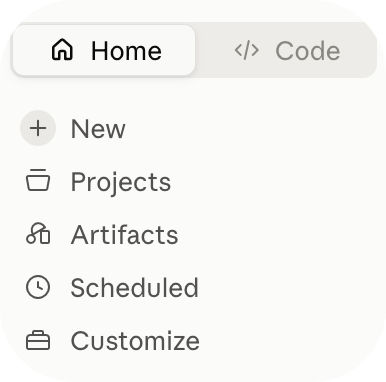
Click New chat in the left sidebar. This opens a standard conversation with Claude. You can type any question or task here straight away.
Step 3 — Use a skill (optional)
Your organisation's admins have configured skills — sets of instructions that tell Claude how to handle specific tasks. To see what's available, type / in the message field. A list of your organisation's skills will appear. Select one, then type your message as normal.
Skills work silently — there is no visual indicator that one is active. Claude simply follows the instructions behind the scenes.
You can also browse available skills and tools by clicking the + button next to the message field.
What else is available in Claude Desktop
Beyond individual chats, Claude Desktop has three other surfaces worth knowing about.
Projects
Projects are persistent workspaces in the left sidebar. Unlike a regular chat, a Project remembers context between sessions — you can upload files, give Claude standing instructions for that context, and pick up where you left off. Useful for anything ongoing: a client account, a recurring report, a long-running piece of work where you don't want to re-explain the background every time.
Claude Code
Claude Code is a more agentic environment designed for coding and technical tasks. It can read and write files on your computer, run terminal commands, work through a codebase, and complete multi-step technical tasks with less hand-holding than a regular chat. If you are not in a technical role, you may not need this — but it is there if you do.
Scheduled tasks
You can ask Claude to run something automatically on a schedule — a daily summary, a recurring reminder, a morning briefing. Just describe what you want and when, and Claude will set it up. Scheduled tasks appear in the sidebar and can be edited or cancelled at any time.