Comparing Company Documents
The Internal Knowledge Assistant can be used to compare your company’s internal documents with external documents you provide. This is useful when reviewing proposals, contracts, or other materials received from clients or partners. This article explains how to compare internal documents with external files and how to combine both assistants when needed.
Written By Kristė Vagnerytė
Last updated 9 months ago
When to Compare Documents
You can use document comparison when you need to:
Compare a client or partner document with your internal version
Review an external proposal against company standards
Identify differences between external and internal documents
Understand how an external document aligns with internal policies
This helps ensure consistency and informed decision-making.
Comparing an External Document with Internal Knowledge
A common workflow is:
Upload or reference the external document (for example, a client proposal)
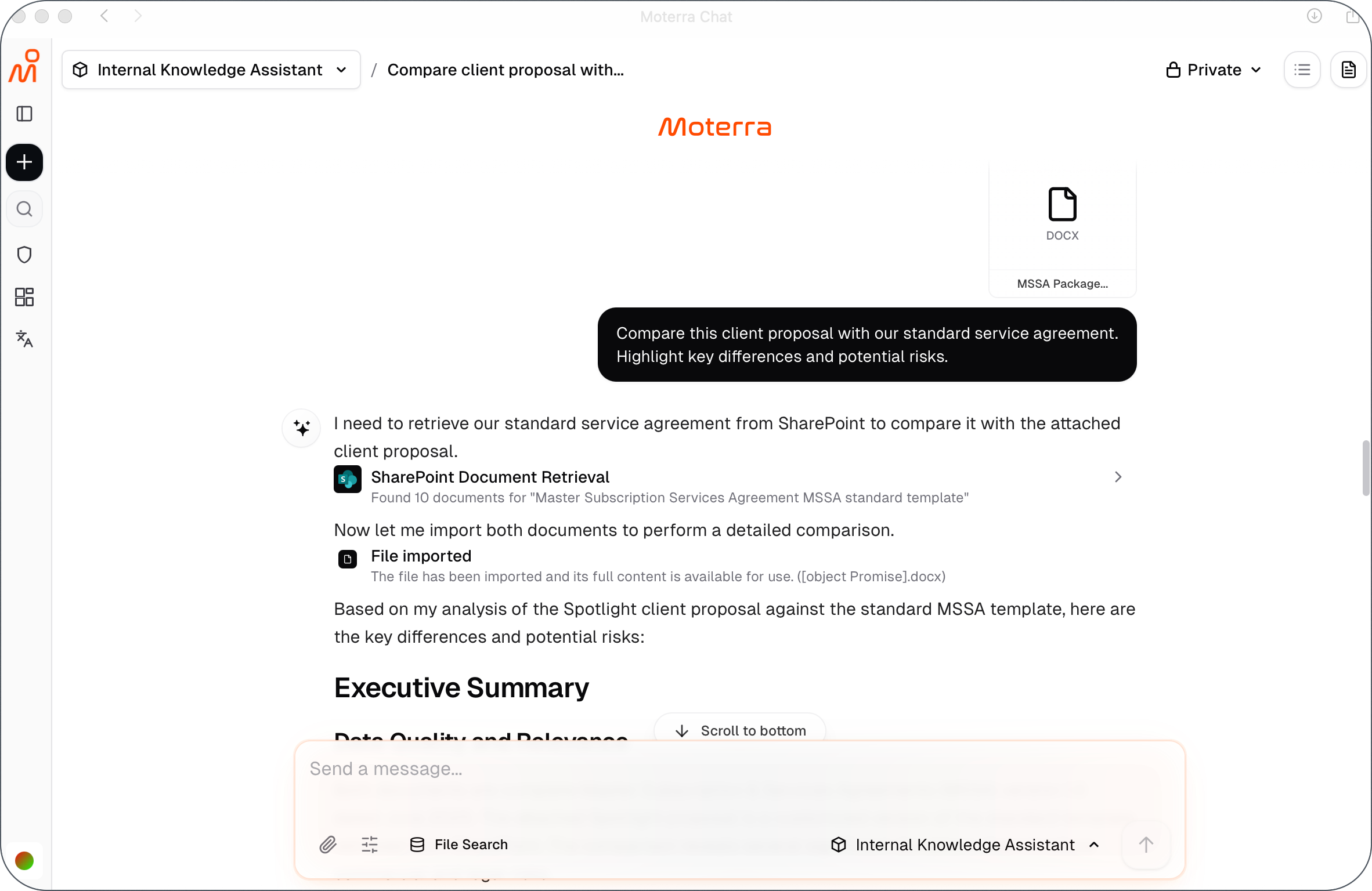
Use the Internal Knowledge Assistant to compare it with relevant internal documents
Example request:
Compare this client proposal with our standard service agreement.
Highlight key differences and potential risks.
The assistant analyzes the external document together with your internal documents and returns a structured comparison with citations to internal sources.
Using Search File for Internal Documents
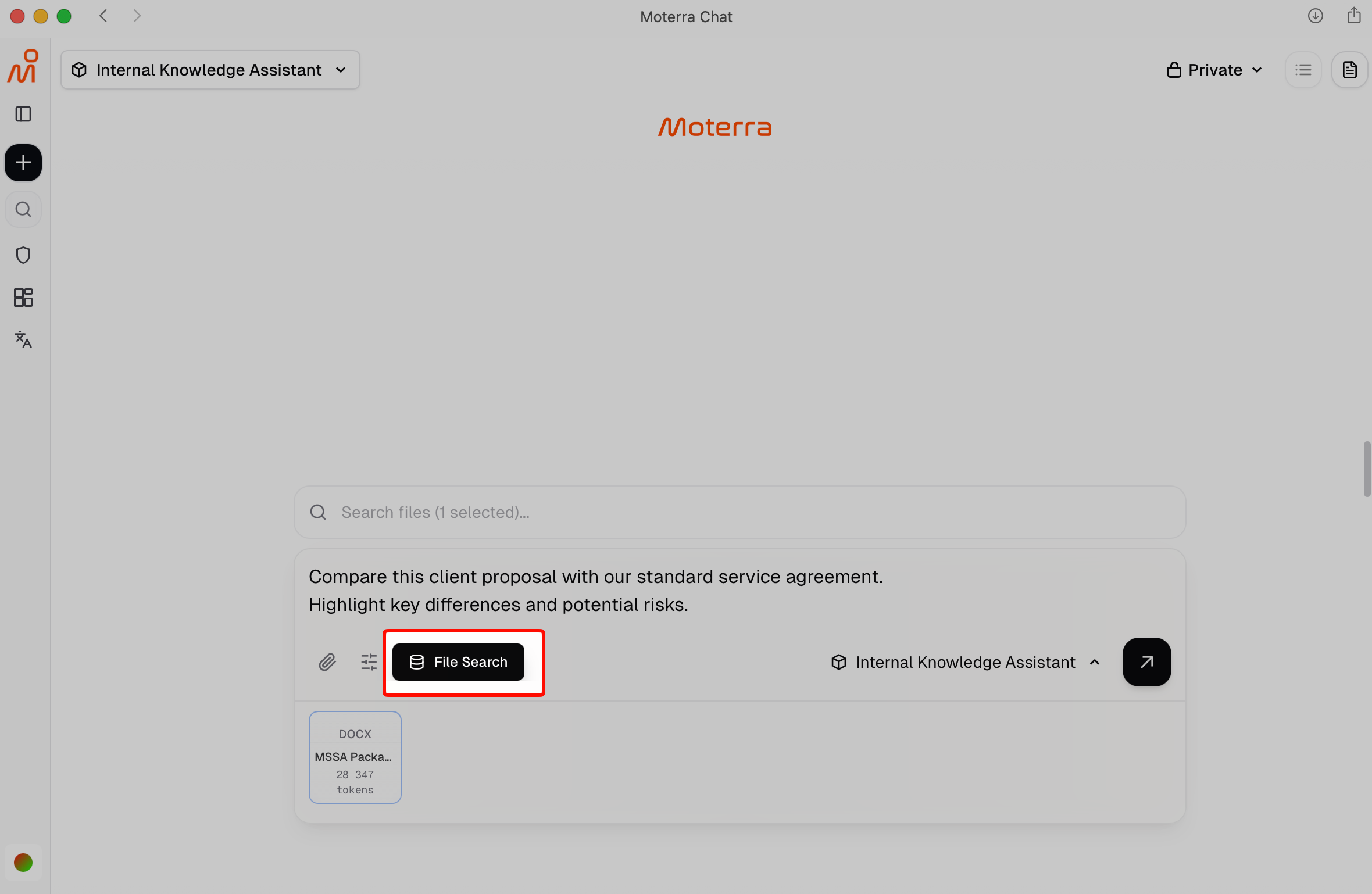
When comparing documents, you can use the Search File option to:
Select the specific internal document to compare against
Limit the comparison to relevant files only
This helps ensure the comparison is focused and accurate.
Combining Internal and External Best Practices
In some cases, you may want to compare your internal documents with external best practices rather than a specific file.
A recommended approach is:
Use the Internal Knowledge Assistant to retrieve or summarize your internal document
Switch to the General Assistant to research external standards or best practices
Compare the findings to identify gaps or improvements
Example workflow:
Internal Knowledge Assistant:
Summarize our current data security policy.
General Assistant:
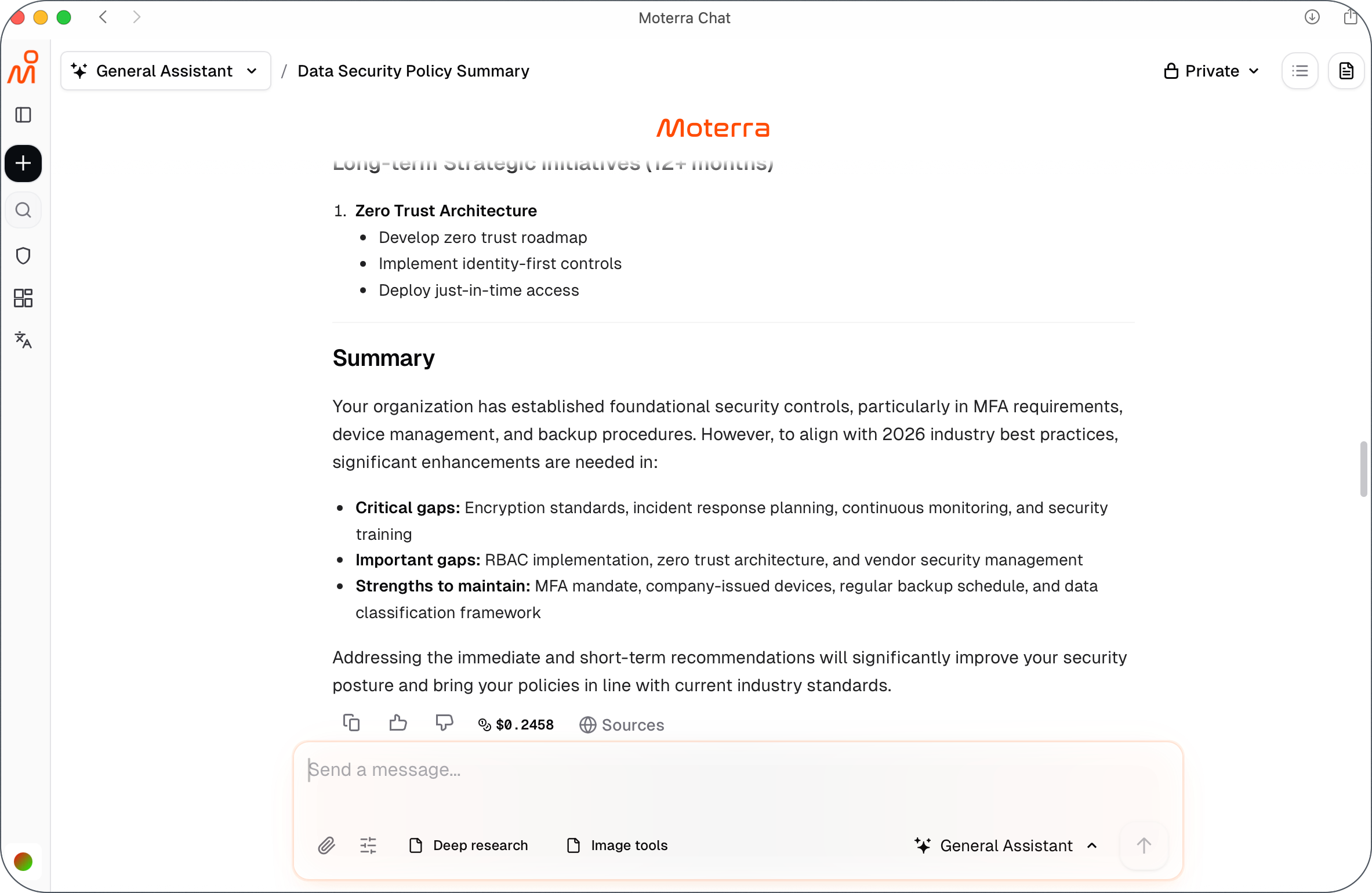
Research current best practices for data security in our industry and compare them with our policy.
This approach combines internal accuracy with external context.
Understanding Comparison Results
Comparison results may include:
Key differences and overlaps
Areas that may require attention or clarification
High-level summaries rather than full document rewrites
When internal documents are involved, results include citations to show which company document was used.
Best Practices for Document Comparison
Clearly state which documents should be compared
Use Search File to select the correct internal documents
Focus on specific aspects (for example, scope, requirements, risks)
Use one comparison task per request
These practices help produce clearer and more actionable results.
Common Mistakes to Avoid
Comparing documents without specifying what to focus on
Expecting legal advice or automatic approval decisions
Mixing multiple comparison tasks in one request
Assuming access to documents you are not permitted to view
What to Read Next
Was this helpful?
Still need help? Ask the team