Knowledge Base
The Knowledge Base is a central place in the Admin Panel where you upload, sync, and manage company documents that power the Internal Knowledge Assistant. You can create multiple knowledge bases and switch between them, so different teams, topics, or agents can each have their own dedicated set of documents. Documents added to a Knowledge Base are used across conversations to answer questions based on your organisation's internal information.
Written By Kristė Vagnerytė
Last updated 3 months ago
What the Knowledge Base is used for
Documents stored in the Knowledge Base allow the agent to:
Search internal company documents for relevant information
Find specific policies, clauses, or procedures
Compare multiple internal documents
Provide answers with clear references (such as page or section)
This makes the Knowledge Base suitable for shared materials like policies, contracts, procedures, and internal documentation.
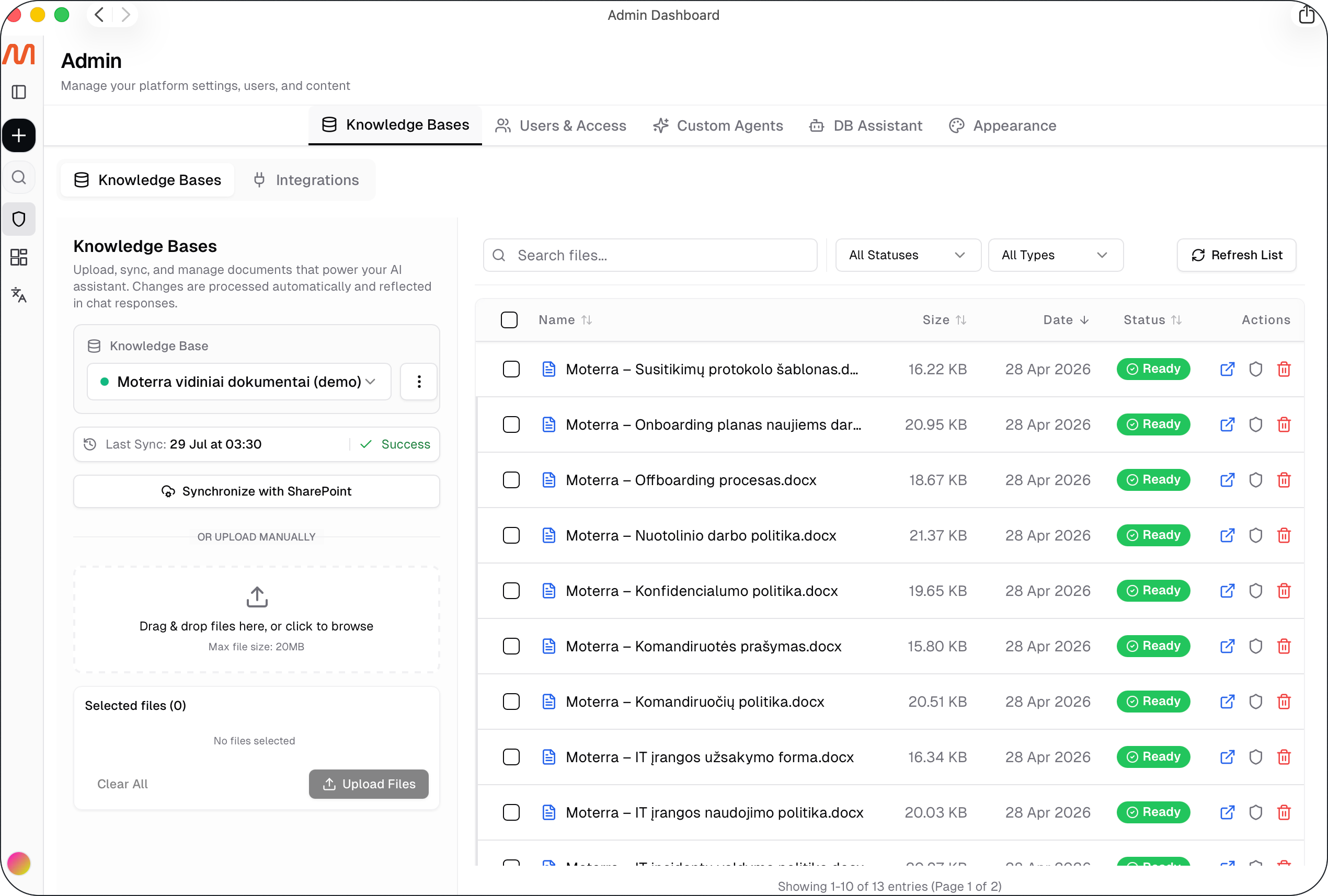
Creating and switching between knowledge bases
Moterra supports multiple knowledge bases, so you can organise documents by team, department, topic, or agent instead of keeping everything in one place.
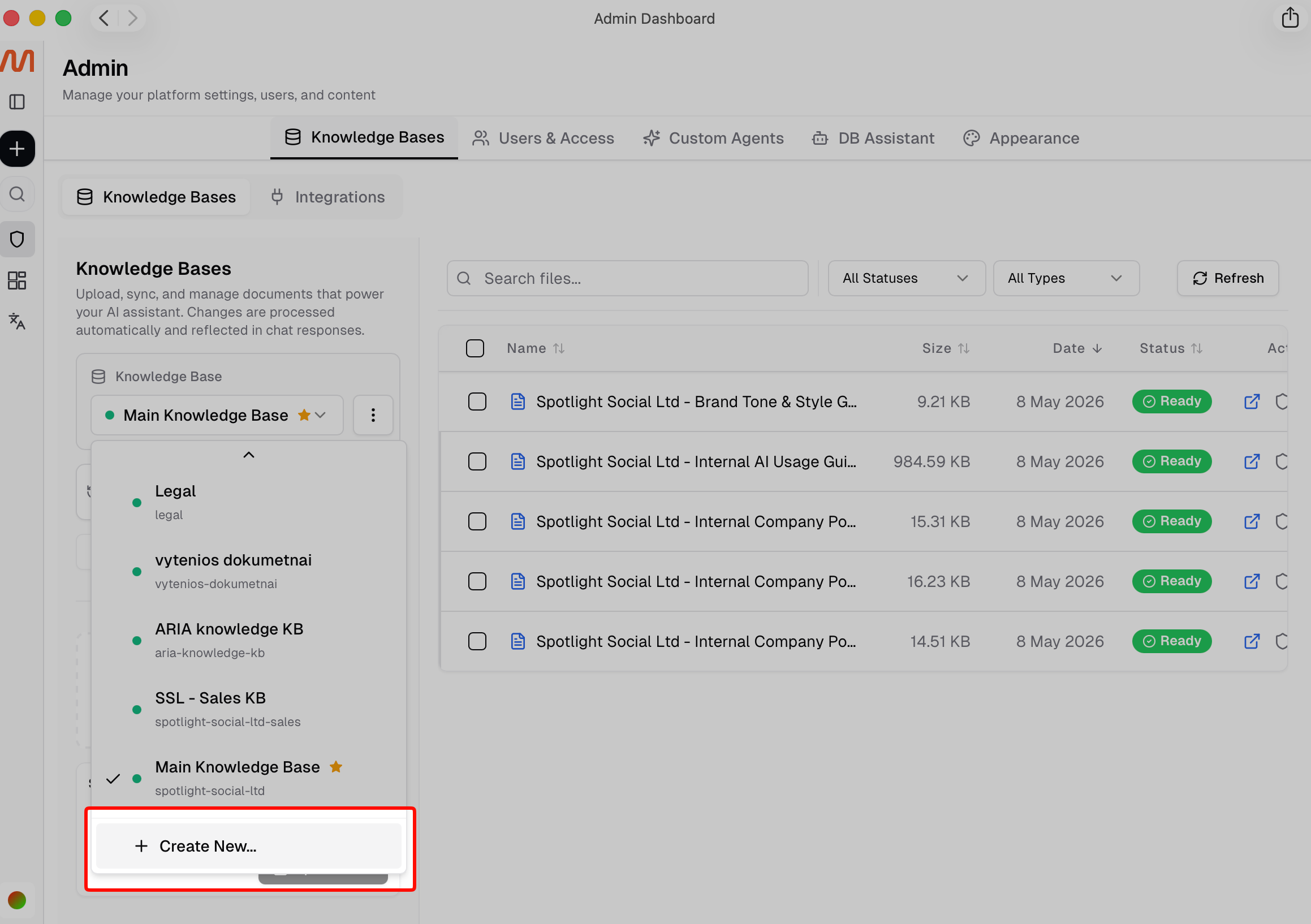
Creating a new knowledge base
Go to Admin Panel > Knowledge Bases.
Open the Knowledge Base dropdown and select Create Knowledge Base.
On the General tab, fill in:
Name – a descriptive name for the knowledge base (e.g. "HR Policies")
Status – set to Active so it becomes available for use
Share with custom agent managers – turn this on if custom agent managers should be able to view and select this knowledge base. Only admins can change this setting.
If the documents should sync from SharePoint, switch to the SharePoint tab and:
Turn on Enable SharePoint sync
Select a configured SharePoint integration
Paste a SharePoint site URL and click Load libraries, then choose the Library and Folder path
Click Create.
Important: After creating a knowledge base connected to SharePoint, click Sync with SharePoint once to run the first synchronisation. After that, the knowledge base updates automatically — no need to sync manually again.
Adding documents to the Knowledge Base
There are two supported ways to populate the Knowledge Base:
Manual upload
Upload files directly in the Admin Panel. Each file can be up to 50 MB.SharePoint integration
Sync documents automatically from SharePoint so the Knowledge Base stays up to date without manual uploads.
Once uploaded or synced, files are processed automatically and become available for use in conversations.
File behaviour and availability
Files in the Knowledge Base are stored persistently and available across conversations
Documents are accessible based on user and group permissions
Updates to files are reflected automatically after synchronisation
Common document formats such as PDFs, Word files, spreadsheets, and presentations are supported
Knowledge Base vs. chat file upload
The Knowledge Base is different from uploading files directly in a chat:
Chat file upload is temporary and limited to the current conversation (up to 25 MB)
Knowledge Base upload is permanent and shared across conversations
For company-wide documents that should be reused, the Knowledge Base is the recommended option.
SharePoint integration
Integrating the Knowledge Base with SharePoint allows Moterra to use your company’s existing document structure as a source of internal knowledge.
Benefits of SharePoint integration:
No manual document uploads are required
The Knowledge Base reflects content from your entire SharePoint
Role-based access is inherited from Entra ID, so document-level permissions are respected in AI responses
This ensures that users and agents only see information they are authorized to access.
How to enable SharePoint integration
To connect your Knowledge Base to SharePoint, Google Drive, or another file server, contact your company’s administrator or reach out to Moterra support at support@moterra.ai.
What to read next
Was this helpful?
Still need help? Ask the team