Configuring a Knowledge Base in a Custom Agent
This article explains how to connect a Knowledge Base to a Custom Agent and how to create a new Knowledge Base if needed. A Knowledge Base allows the agent to retrieve information from internal documents.
Written By Kristė Vagnerytė
Last updated 3 months ago
What the Knowledge Base Tool Does
The Knowledge Base tool allows a Custom Agent to search and retrieve content from internal documents.
When enabled, the agent can:
Search documents within the selected Knowledge Base
Retrieve relevant excerpts
Use internal content in responses
If the tool is not enabled, the agent cannot access internal documents.
Connecting a Knowledge Base to an Agent
To connect a Knowledge Base:
Open the Custom Agent settings.
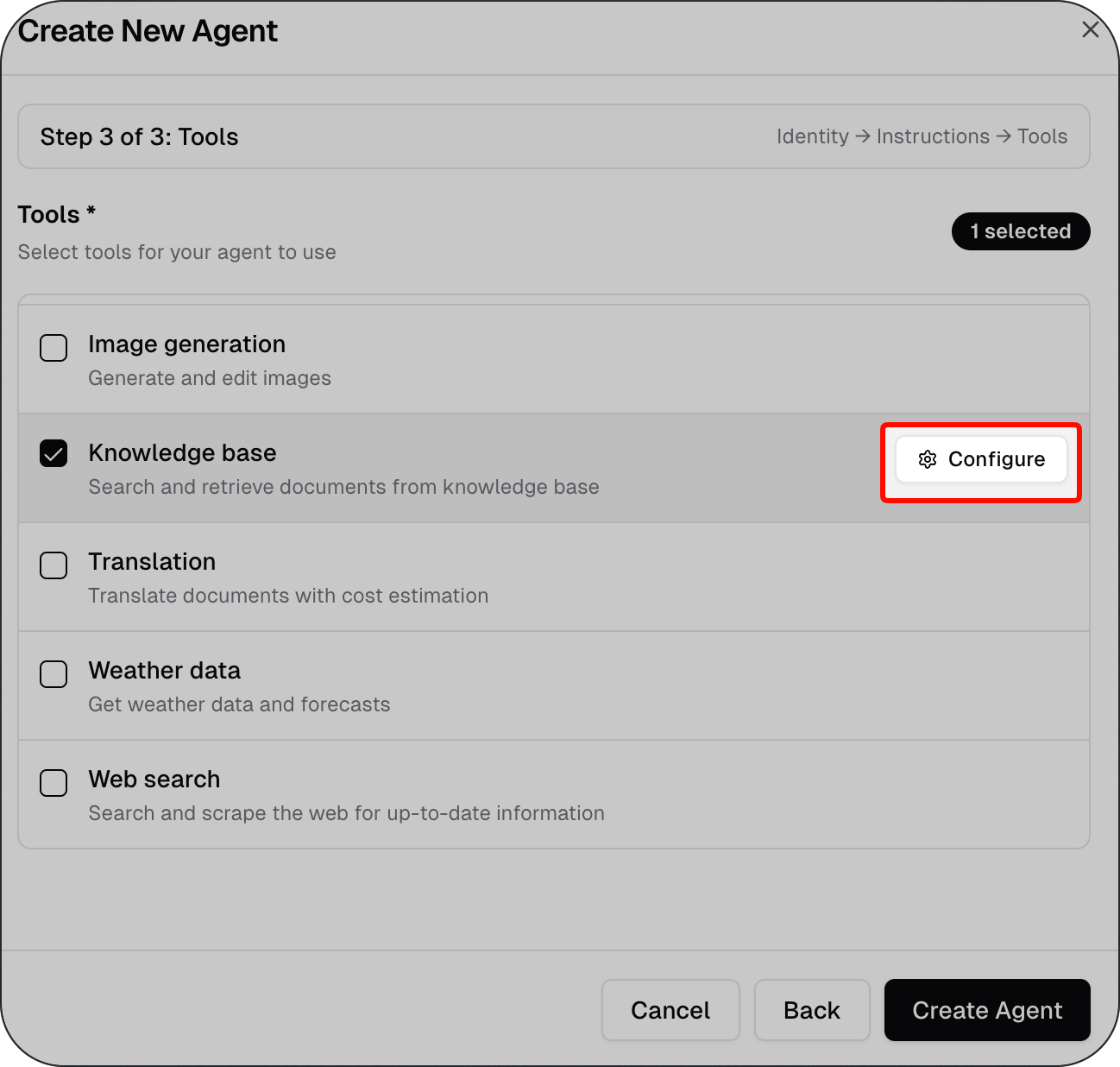
In the Tools section, enable Knowledge base
Click Configure.
Select a Knowledge Base from the dropdown list.
Click Save Configuration.
Save the agent.
Once configured, the Knowledge Base status will show as Configured.
The agent will search only within the selected Knowledge Base.
Creating a New Knowledge Base
If the required Knowledge Base does not exist, create a new one.
You can create a Knowledge Base in two ways:
Upload documents manually
Synchronize documents from a SharePoint folder
Creating a Knowledge Base for Manual Document Upload
To create a Knowledge Base for manually uploaded documents:
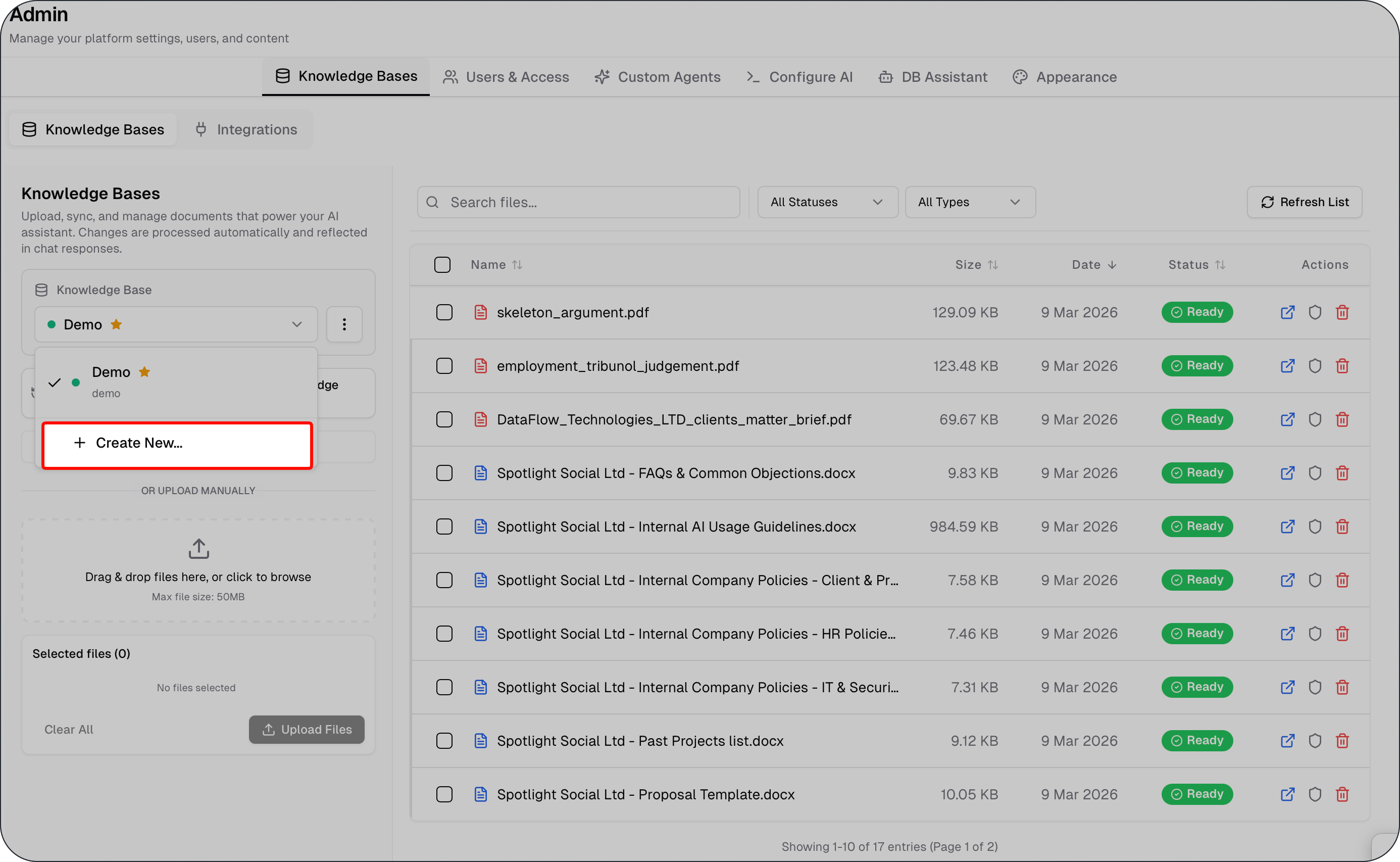
Open Admin.
Go to Knowledge Bases.
Click the Knowledge Base dropdown.
Select Create New….
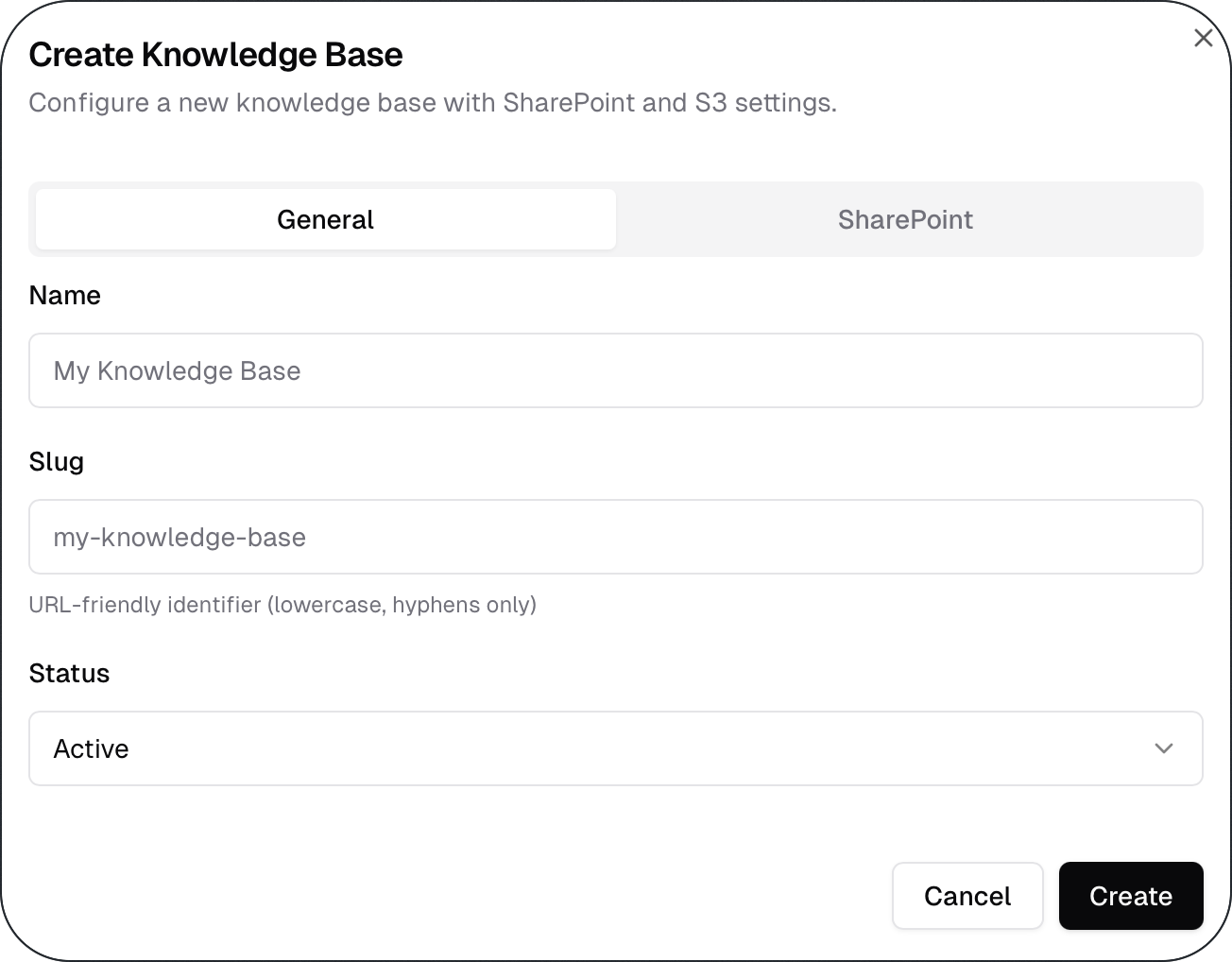
In General, provide:
Name
Status
Click Create.
After creation, documents can be uploaded directly to the Knowledge Base.
Creating a Knowledge Base from a SharePoint Folder
A Knowledge Base can also synchronize documents from a specific SharePoint location.
To create a SharePoint-synchronized Knowledge Base:
Open Admin.
Go to Knowledge Bases.
Click the Knowledge Base dropdown.
Select Create New….
In General, provide:
Name
Status
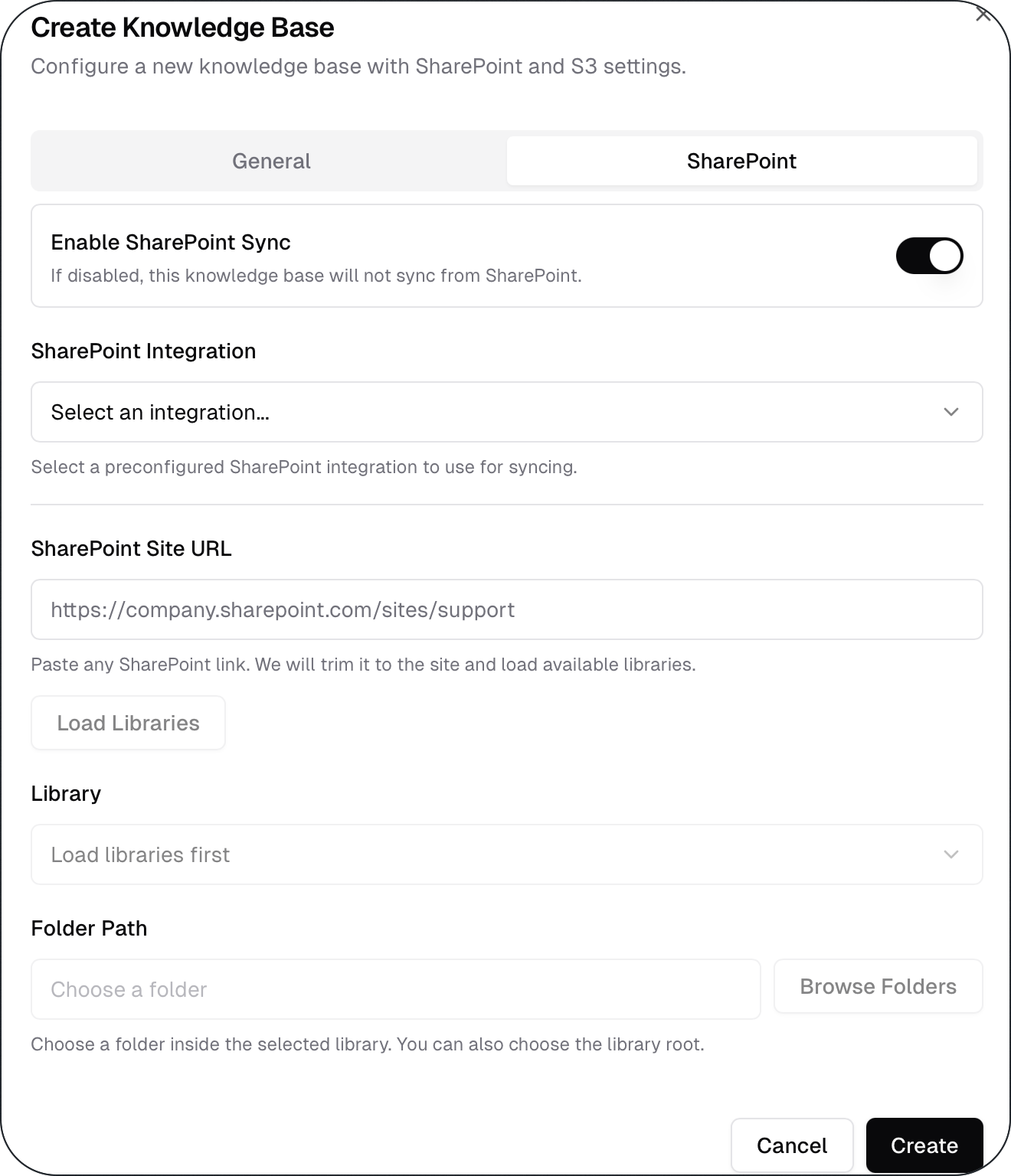
Open the SharePoint tab.
Enable SharePoint Sync.
Select a SharePoint Integration.
Paste the SharePoint Site URL.
Click Load Libraries.
Select the Library.
Choose the Folder Path.
Click Create.
The selected SharePoint folder will be used as the document source for this Knowledge Base.
Important:
Do not delete Knowledge Bases that have a star (*) in their name. These are default Knowledge Bases.
SharePoint Integrations
Before synchronising documents from SharePoint, a SharePoint integration must exist.
To create a SharePoint integration:
Open Admin.
Go to Knowledge Bases.
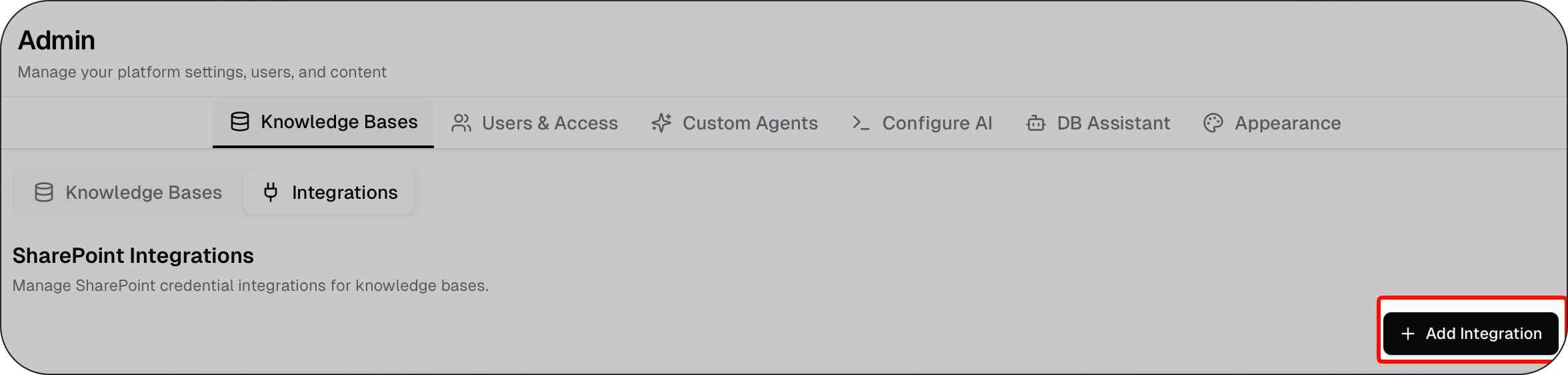
Select Integrations.
Click Add Integration.
Provide the required SharePoint credentials.
Once created, the integration can be selected when configuring a Knowledge Base.
Some environments may already include a default SharePoint integration.
Document Synchronisation
Knowledge Bases process changes automatically.
The interface shows:
Last sync time
Sync status (for example, Success)
Only synced documents are searchable.
If documents were recently added, wait until synchronisation is complete before testing the agent.
Restricting the Agent to Internal Documents
Enabling the Knowledge Base allows access to internal documents but does not automatically restrict responses to them.
To ensure document-based responses, include a rule in the system prompt such as:
Use only information from the connected Knowledge Base.
If the answer is not found in the documents, clearly state that the information is unavailable.
Without this rule, the agent may combine internal documents with general knowledge.
When to Use a Knowledge-Connected Agent
Use a Knowledge Base when:
Answers must come from internal policies or procedures
Document-based accuracy is required
Official documentation must be referenced
For general writing or external research, use the General Assistant instead.
What to Read Next
Was this helpful?
Still need help? Ask the team