Databases
Connect a database with read-only access and prepare skills so Cowork can answer questions about your data.
Written By Kristė Vagnerytė
Last updated 18 days ago
The Databases page lets you connect a company database to Moterra, so that Cowork can answer questions about your data. Databases is an optional module. You find it in the Admin (Cowork) panel, under Databases.
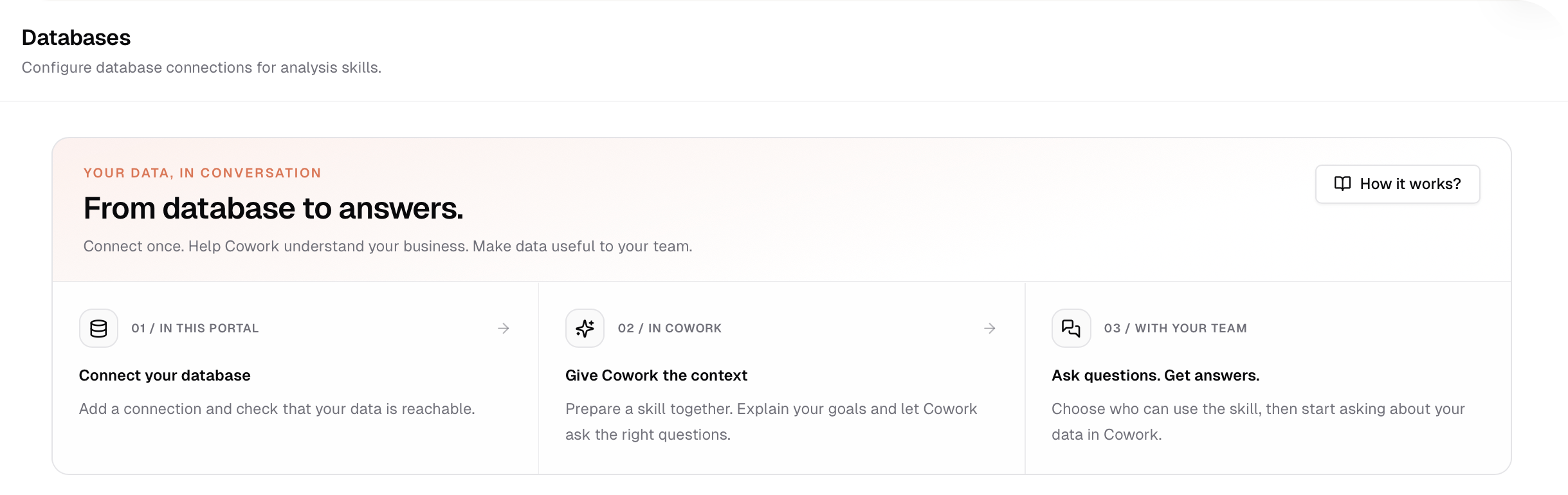
How it works
The connection gives access. The skill gives context. A connection lets Cowork reach the database. A database skill explains the tables, business definitions and rules Cowork should use. One database can have several skills for different tasks or teams.
The page walks you through three steps, and the How it works? button opens a short guide:
In this portal – connect your database and check that the data is reachable.
In Cowork – prepare a skill together with Cowork. Explain your goals and let Cowork ask the right questions.
With your team – choose who can use the skill, then start asking questions about your data in Cowork.
Connecting a database
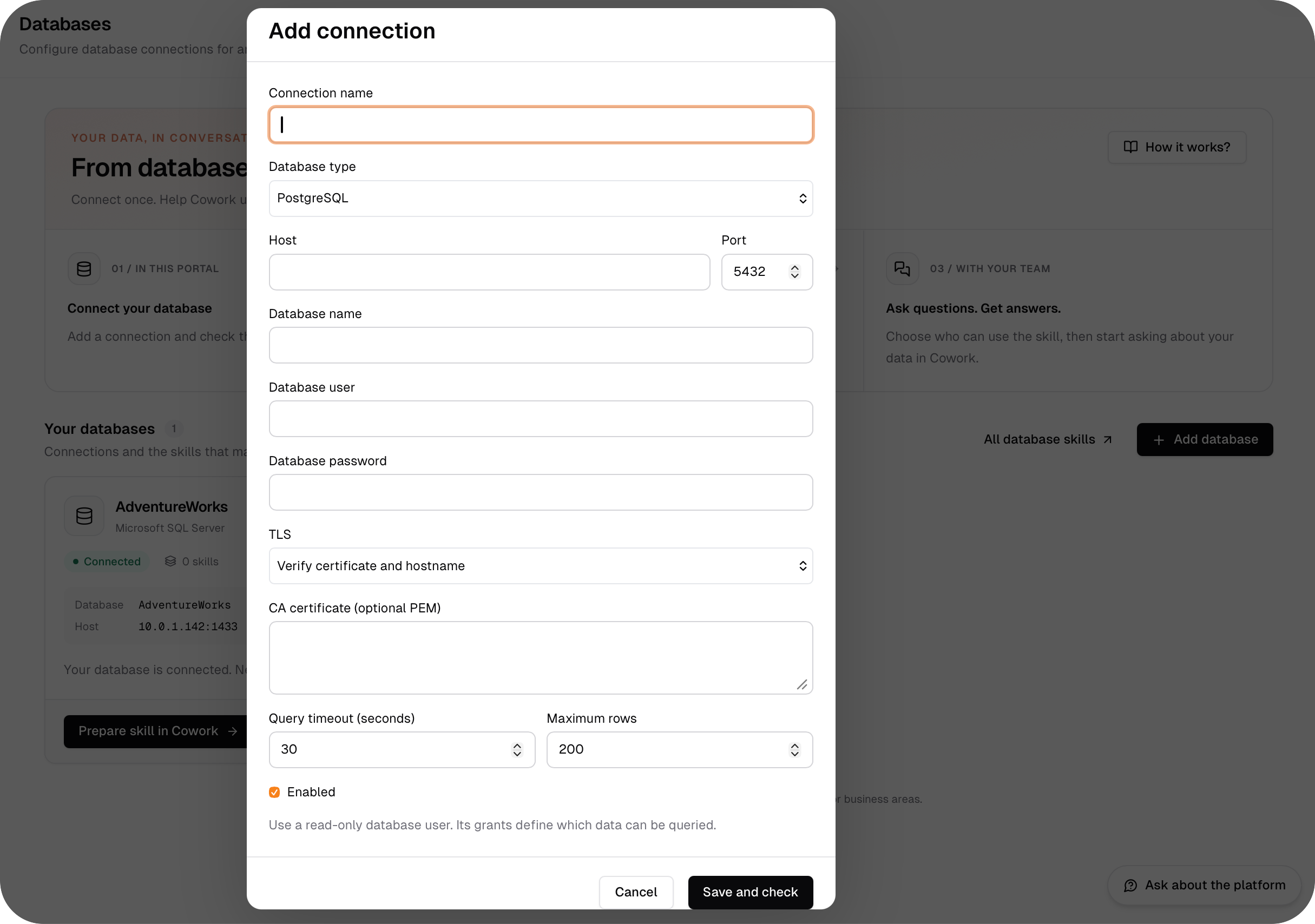
Click Add database and fill in the connection details:
Connection name and Database type (for example PostgreSQL or Microsoft SQL Server);
Host and Port, then the Database name;
Database user and Database password;
TLS – how the connection is secured. By default it is Verify certificate and hostname. You can add your own CA certificate (optional, in PEM format) if it is needed;
Query timeout (seconds) and Maximum rows a query may return.
Then choose Save and check. When the card shows Connected, the connection check has passed.
Use a database account with read-only access to the tables your team needs. Moterra only reads data from the database.
The database card
Every connected database has a card with its name and type, a status (Connected), the number of skills made for it, and the database name and host. The ... menu has more actions. At the bottom:
Prepare skill in Cowork – starts the setup of a new skill (see below).
View skills – shows the skills made for this database. All database skills at the top of the list shows them for every database.
Preparing a skill
On a database card, click Prepare skill in Cowork.
Click Copy prompt. The prompt names your database and tells Cowork to ask about your goals before it prepares anything. It never contains passwords, and you do not need to share them in chat.
Open Cowork with your Moterra plugin connected and send the prompt.
Cowork takes a brief look at the database structure, then asks what the database is for, which areas matter and what you want to learn. Bring two or three real questions, and clarify terms such as revenue, active customers or completed orders. Cowork keeps asking until the task is clear, unless you tell it to make assumptions.
Review the proposed skill and save it. Saving enables the skill. Then choose who can use it in the portal, so your team gets access (see Skills).
Who can use Databases
This area is for administrators only.
What to read next
Was this helpful?
Still need help? Ask the team