Knowledge Bases
Upload and sync company documents, create knowledge bases, and control who can see them.
Written By Kristė Vagnerytė
Last updated 18 days ago
The Knowledge Bases page is where you upload, sync and manage the company documents that Claude can search and read. You can have several knowledge bases, for example one for each team or topic. You find it in the Admin (Cowork) panel, under Knowledge Bases. It has two tabs: Knowledge Bases and Integrations.
What a knowledge base is for
With documents in a knowledge base, Claude can:
search your internal documents for relevant information;
find specific policies, clauses or procedures;
compare several documents;
answer with clear references, such as a page or section.
This makes a knowledge base a good home for shared material such as policies, contracts, procedures and internal documentation.
Choosing a knowledge base
At the top, the Knowledge Base selector lists your knowledge bases, each with a status dot. The star marks the main (default) knowledge base. Pick one to see its files.

The file list
Use Search files... and the All Statuses and All Types filters to find a file. List and Folders switch the view, and Refresh List reloads it.
The table shows each file's Name, Size, Date and Status. Ready means the file has been processed and Claude can use it. In Actions, the first icon opens the file and the ... menu has Manage access and Delete file.
Adding documents
Click Upload & sync. There are two ways to fill a knowledge base:
Manual upload – upload files directly. Each file can be up to 50 MB.
SharePoint sync – documents are synced automatically from SharePoint, so the knowledge base stays up to date without manual uploads.
Uploaded and synced files are processed automatically and then show as Ready. Common formats such as PDFs, Word files, spreadsheets and presentations are supported.
Creating a knowledge base
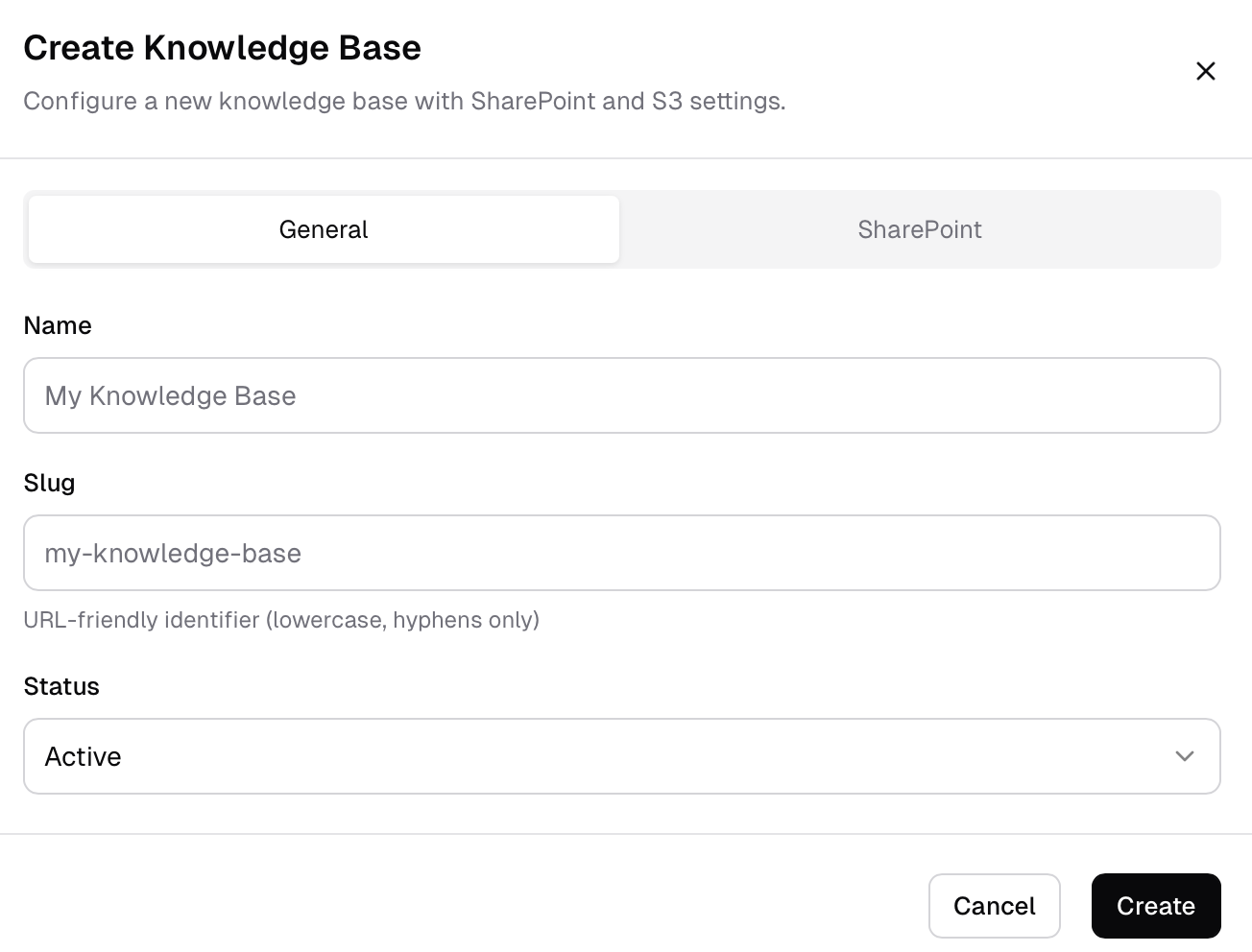
Open the selector and click Create New...
On the General tab, fill in the Name, the Slug (a short identifier with lowercase letters and hyphens only) and the Status (Active makes it available).
If the documents should come from SharePoint, open the SharePoint tab. Turn on Enable SharePoint Sync, choose the SharePoint Integration, paste the SharePoint Site URL and click Load Libraries. Then choose the Library and the Folder Path (use Browse Folders, or pick the root of the library).
Click Create.
After creating a knowledge base that is connected to SharePoint, run the first synchronisation once. After that it updates automatically.
SharePoint integrations
The Integrations tab lists the SharePoint connections that your knowledge bases use. To connect another SharePoint, Google Drive or file server, just add it.
If a knowledge base is synced with SharePoint, access comes from SharePoint. Each person sees only the documents they are allowed to see there (rights come from Entra ID), so Claude only uses documents that the person asking has access to.
Who can see what
For someone to search or read a document, they need access to both the knowledge base and the document. Administrators and managers can always manage every knowledge base.
Click Knowledge base access to set who can use the selected knowledge base:
All users – no extra restriction at knowledge base level. Document permissions still apply.
Specific users and groups – a user needs to match, either themselves or through one of their groups.
For a single file, use Manage access in the ... menu of that file.
Knowledge base or chat upload?
Files attached in a chat are temporary and stay in that conversation only (up to 25 MB). Files in a knowledge base are permanent and shared across conversations. For company documents that people will reuse, use a knowledge base.
Who can use Knowledge Bases
Managers and administrators can create and manage organisation knowledge bases. Regular users get their own small personal knowledge base.
What to read next
Was this helpful?
Still need help? Ask the team