Moterra AI Quick Start Guide
Moterra helps you create content, research information, and find answers in your company documents using AI assistants. This guide will help you get started and complete your first task in just a few steps.
Written By Kristė Vagnerytė
Last updated 9 months ago
General Assistant – Content Creation & External Research
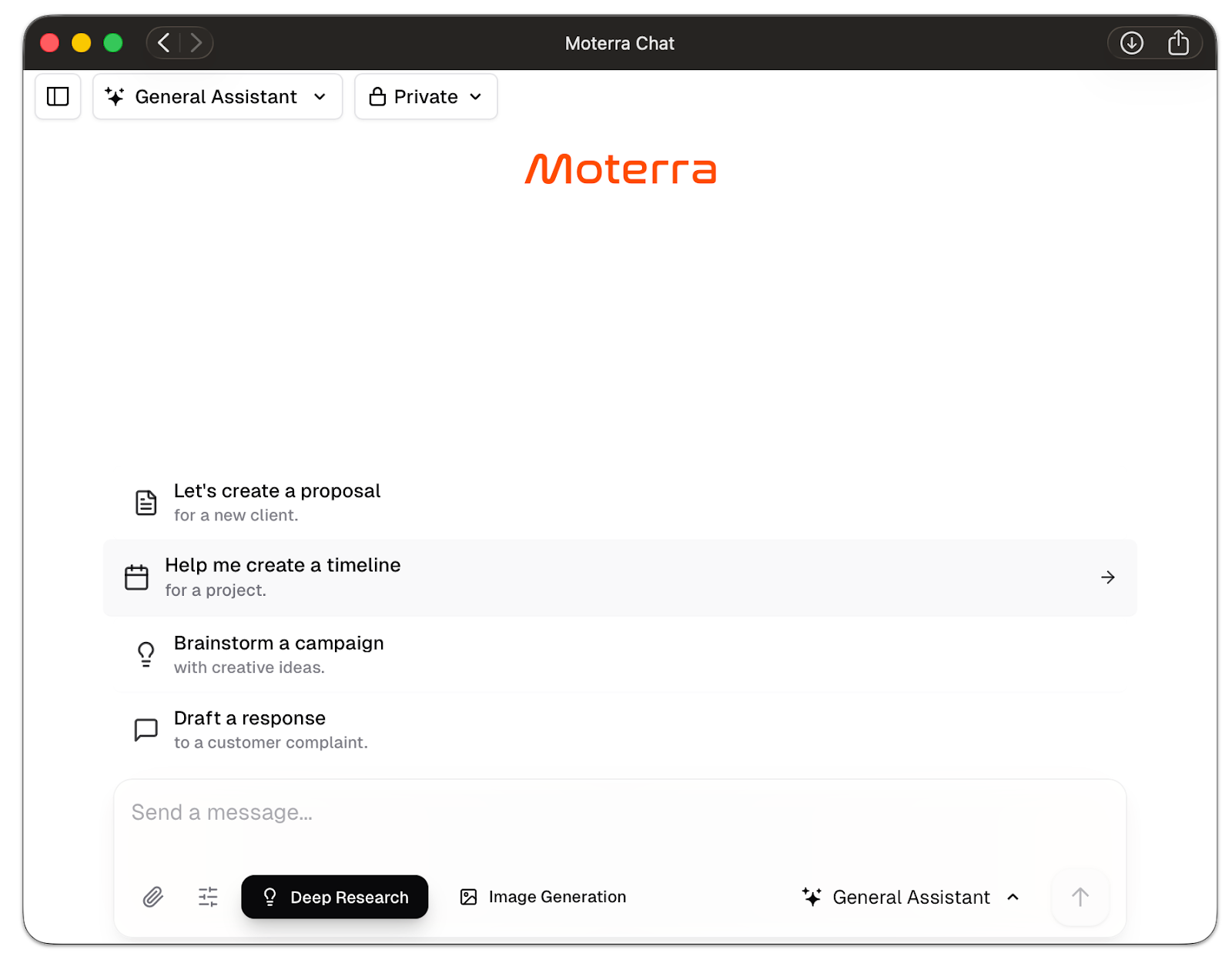
Use the General Assistant when you need to create new content or work with publicly available information.
The General Assistant can:
Search the internet for up-to-date information
Create documents, emails, social media content, and presentations
Generate images and graphics
Analyze uploaded files
Create charts from data
Translate documents into other languages
Think of this assistant as a general-purpose AI for daily work tasks.
Internal Knowledge Assistant – Company Documents Expert
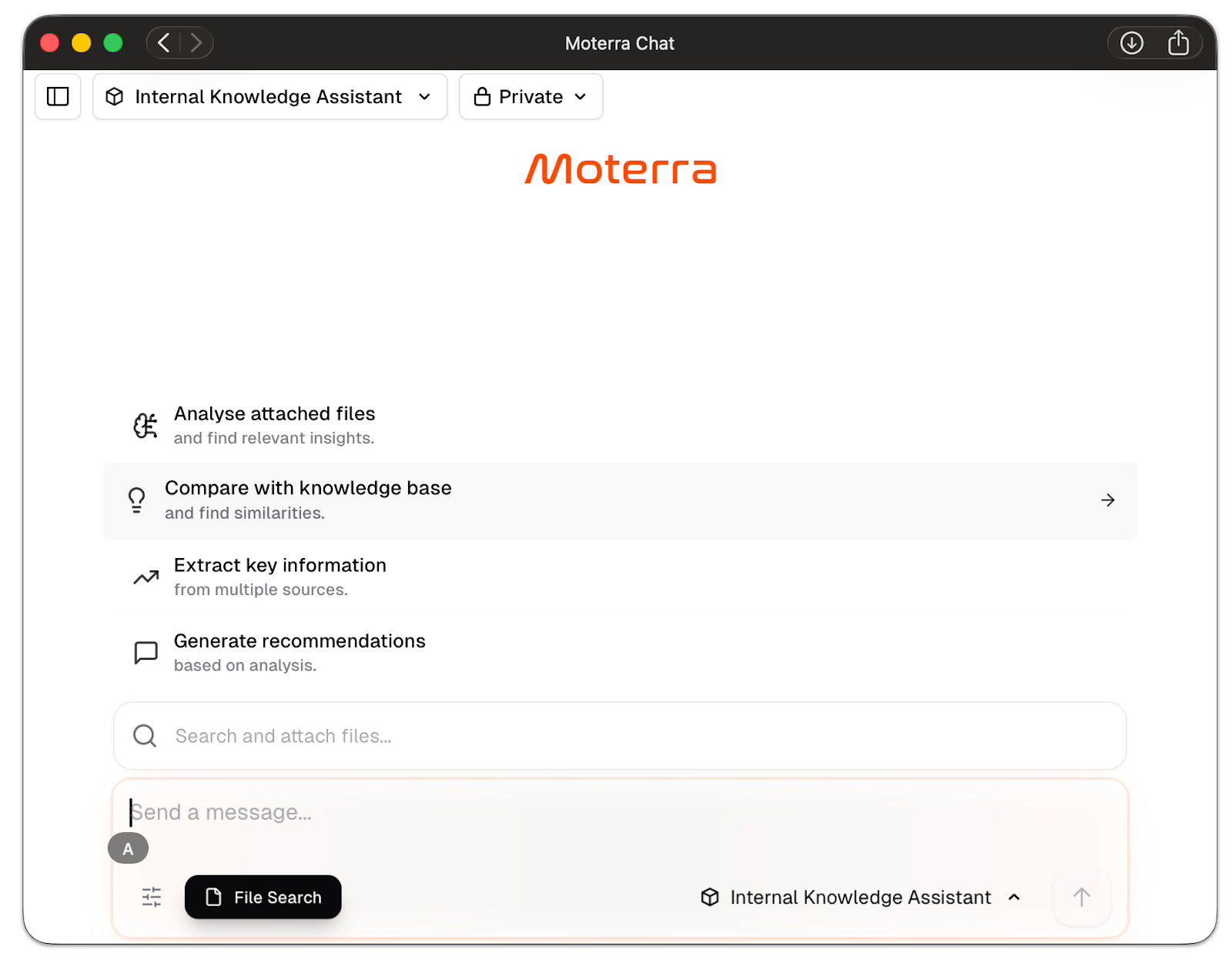
Use the Internal Knowledge Assistant when you need information from your company’s internal documents.
The Internal Knowledge Assistant can:
Search uploaded company documents
Find specific policies, procedures, and clauses
Provide exact citations, including page and section references
Compare multiple company documents
Create reports based on internal data
This assistant works as a centralized knowledge source for your organization.
Getting Started in 3 Simple Steps
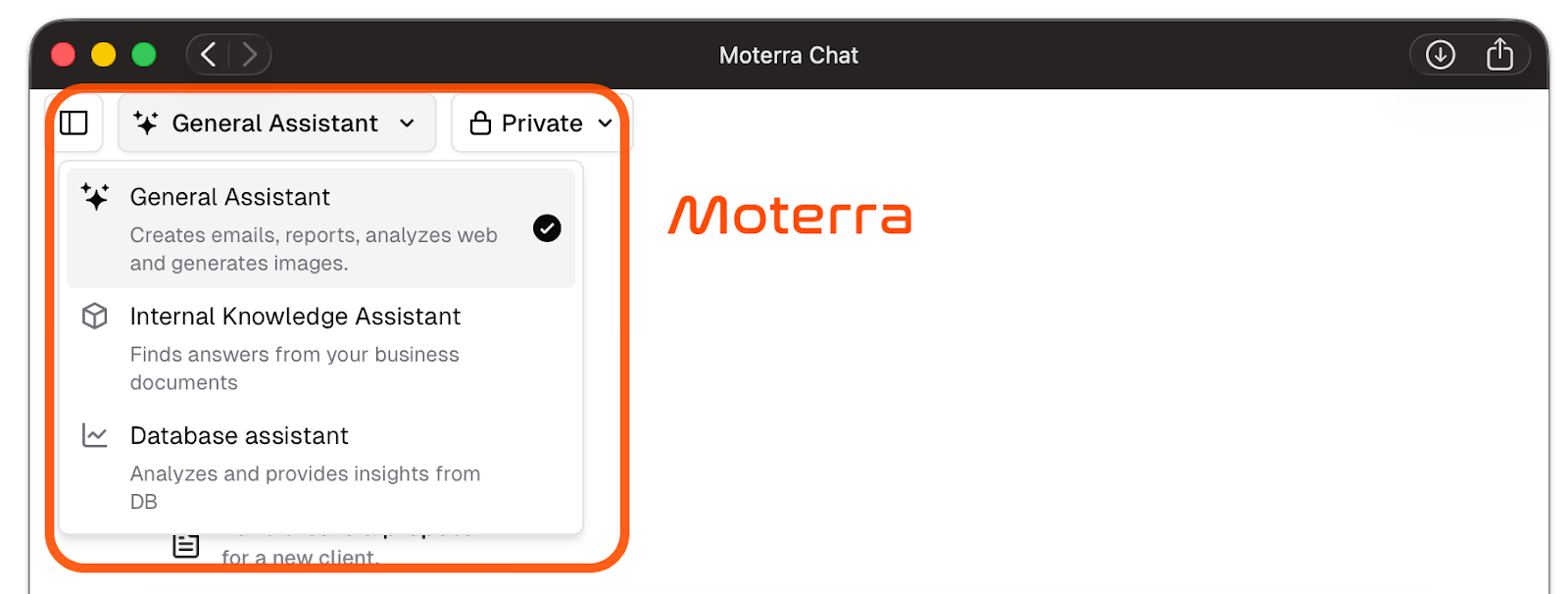
Step 1: Choose the Right Assistant
Use the following rule when deciding:
If you need information from the internet or want to create something new, use the General Assistant
If you need information from company documents, use the Internal Knowledge Assistant
Step 2: Start Your Query
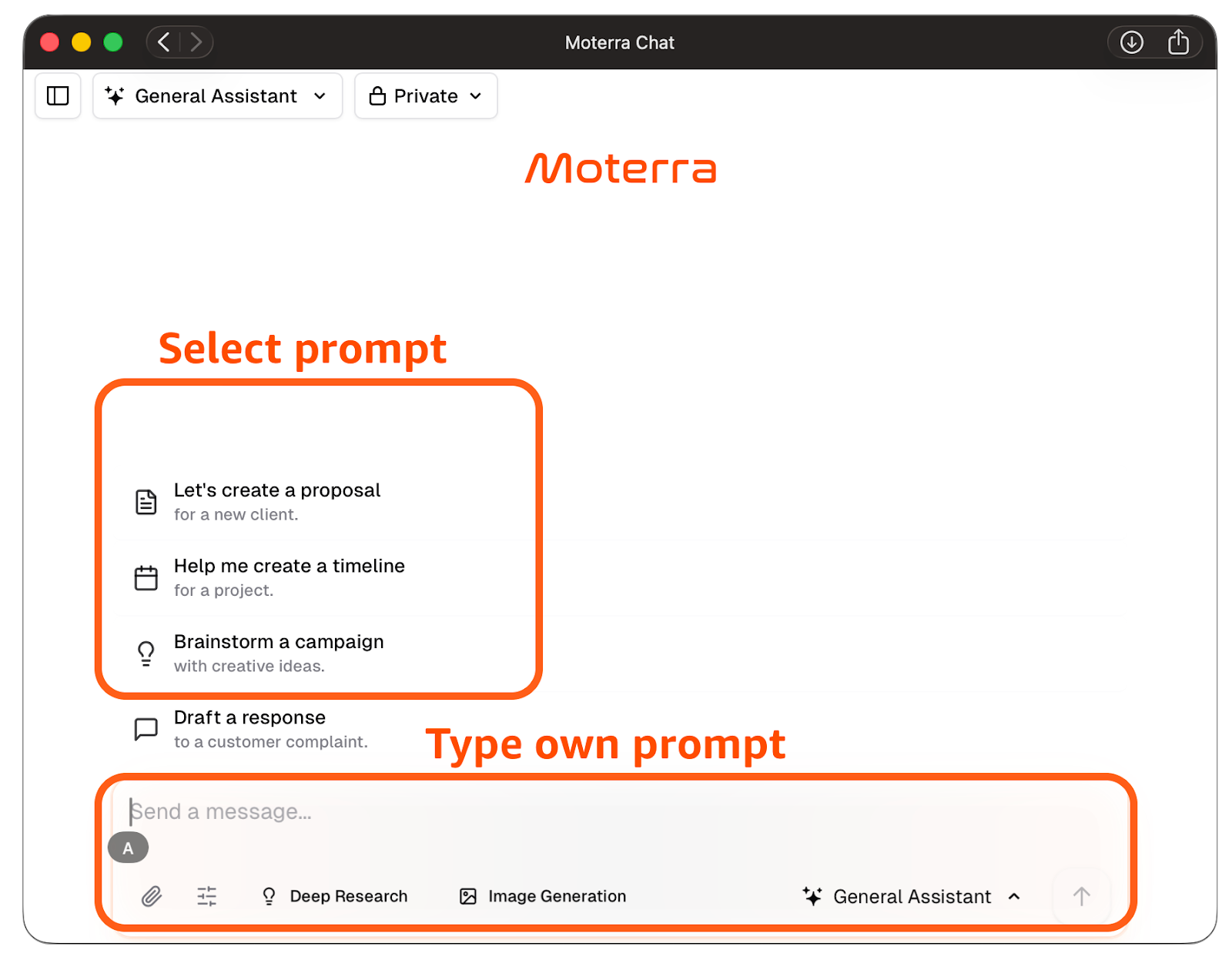
You can begin in two ways:
Click one of the suggested prompts, or
Type your question directly into the chat input
Step 3: Review Your Results
The assistant responds within seconds with structured, professional output that you can review, copy, or export.
💡Pro Tip: Start a New Chat When Changing Topics
Each message you send includes the entire conversation history. Long or mixed-topic chats may result in:
Slower performance
Incomplete or cut-off responses
Confusing or mixed answers
To avoid this, start a new chat whenever you begin a new task or change topics.
Working with Files
File Upload Options
Option 1: Chat Upload (up to 25MB)
Upload files using the attachment icon in the chat
Files are available only for the current conversation
Best suited for quick reviews or one-time analysis
Option 2: Knowledge Base Upload (up to 50MB)
Upload files via the Admin Portal → Knowledge Base
Files are stored permanently and accessible across conversations
Best suited for company-wide documents
Supported file formats include PDF, DOCX, XLSX, PPTX, CSV, images, and text files.
Need Help?
If you are unsure how to phrase your question, ask the AI directly:
“Help me write a better prompt for this task.”
If you still need assistance, contact:
Email: support@moterra.ai
Was this helpful?
Still need help? Ask the team